Phishing Attempt Practices
Phishing Attempt Practices
Below are some practices we all need to adhere by during this time of the year for phishing attempts.
Reporting Suspicious Emails
1. if an email looks suspicious to you even if the user is an actual cornerstone employee. please report the email by clicking the spam alert icon that is on the toolbar for emails when you open to read them.
2. Make sure to report the email as phishing to google. That way the email can be sent directly into google's phishing filter. There are three dots in the right top corner on every email click the three dots and you will see the options to report spam or report phishing. After reporting delete the email and block the sender.
Note: If the sender is a cornerstone employee. please let me know immediately by contacting me personally or by the helpdesk email.
Note: in the above screenshot under number 1. There are 3 dots as well. That drop down menu does not have the report phishing or report spam. Only the 3 dots to the far right of the screen when you are reading the email. Like in the below screenshot.
How to spot phishing (common signs)
1. Any email asking for payment, credentials, authorization, or personal data.
2. Urgent request attempts "Immediate action required" your account will be closed. (Only myself and Jay can close your account for your references)
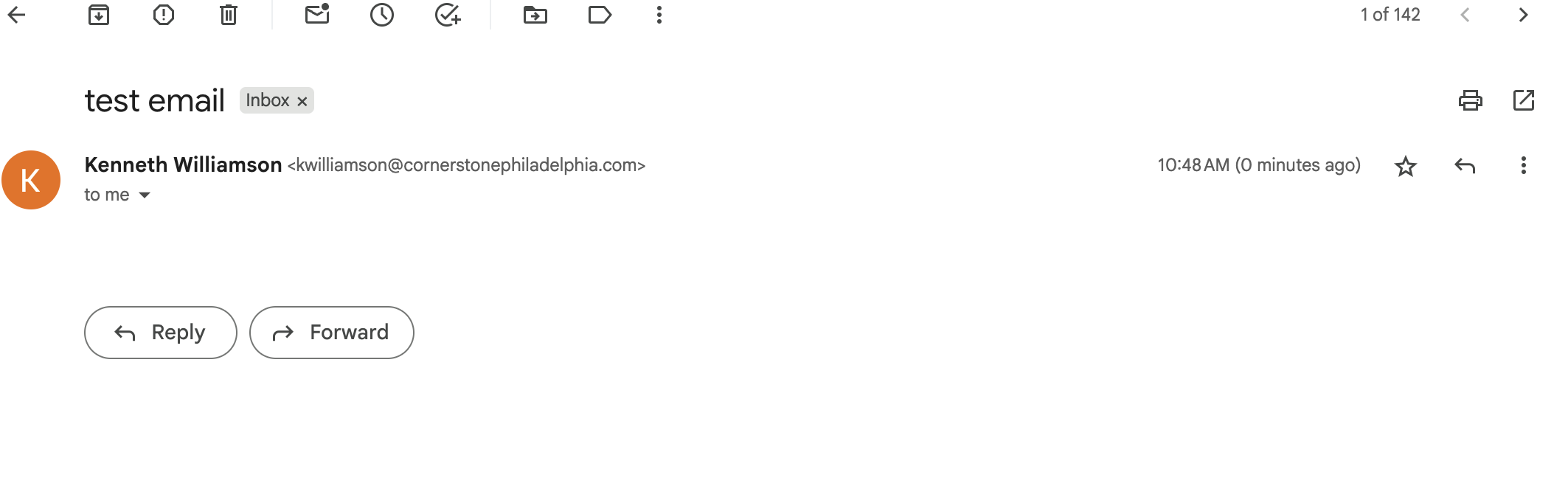
3. A strange sender address- Check the sender's email address. Which is below once you get an email you suspect to be a phishing email.
Conclusion: Please practice these steps because phishing attempts will continue throughout the year from outside sources.
Filter Sender to Spam or Delete (Manual Control)
Note: This is for computer devices use only, not mobile devices.
1. Open an email from the sender
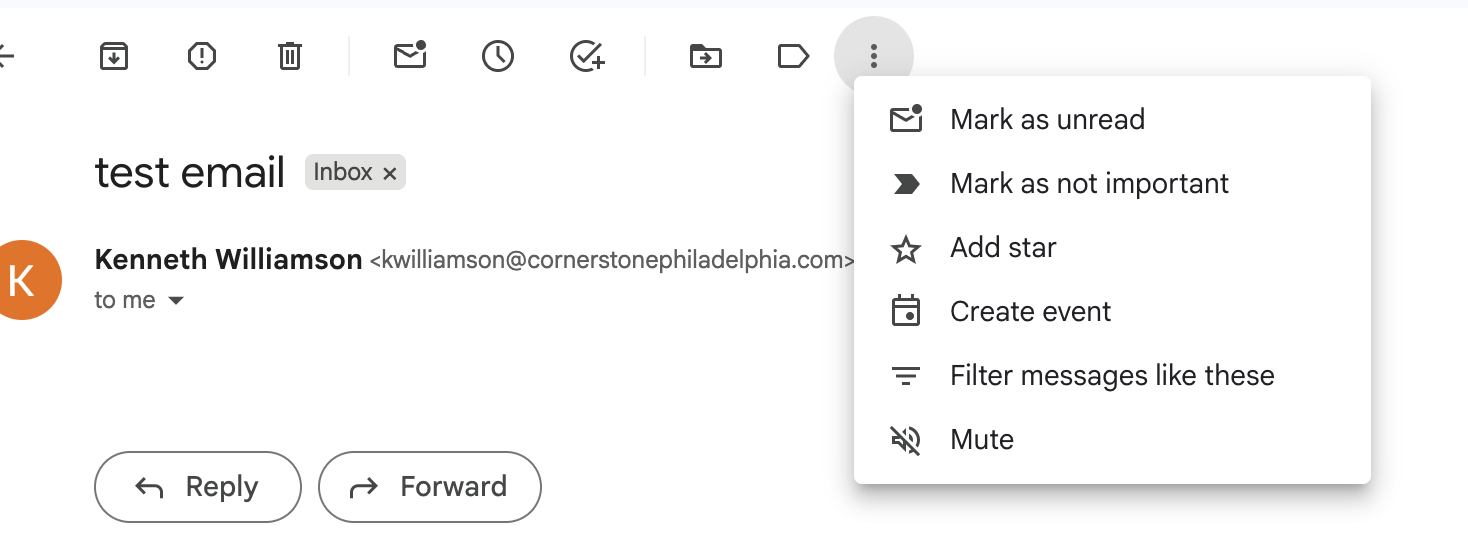
2. Click the 3 dots at the top of email you want to send to spam or trash and select Filter messages like these.
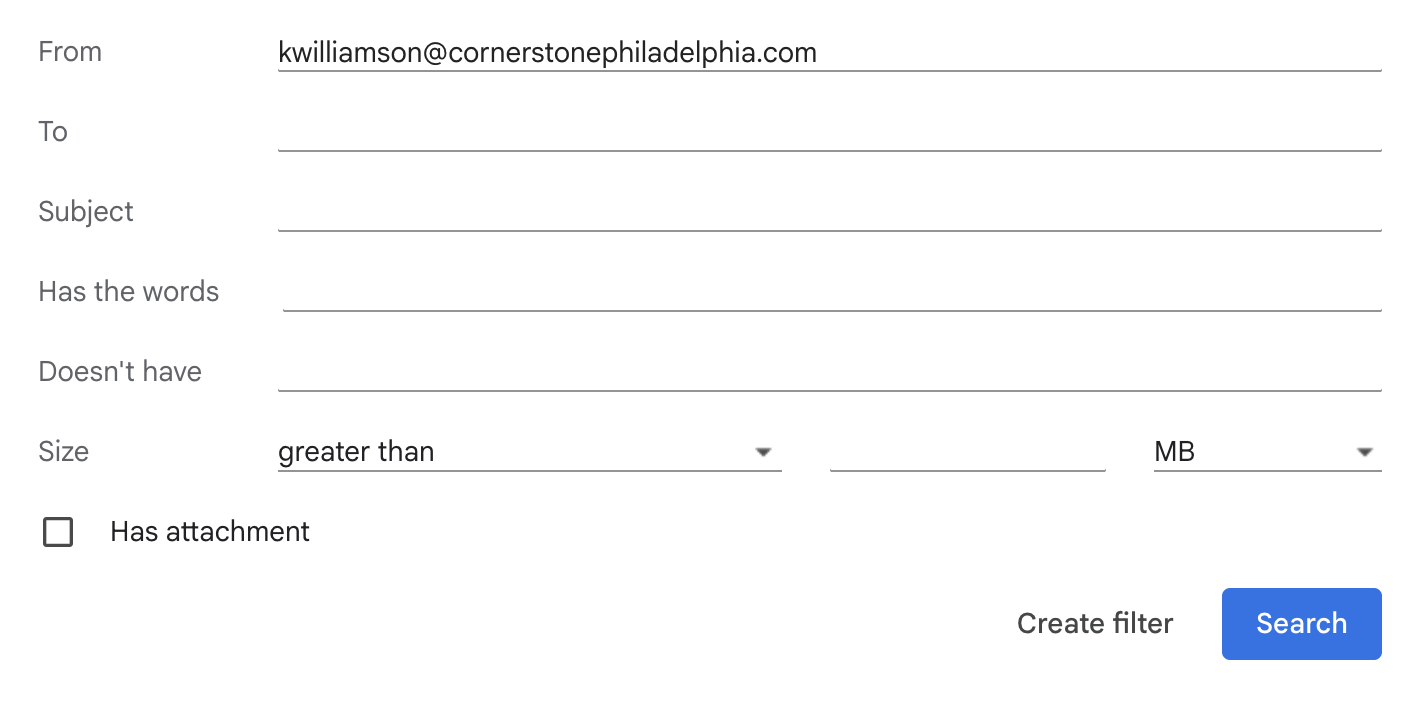
3. Once you are in "filter messages like these." You will see the senders email appear at the top. next click "Create filter."
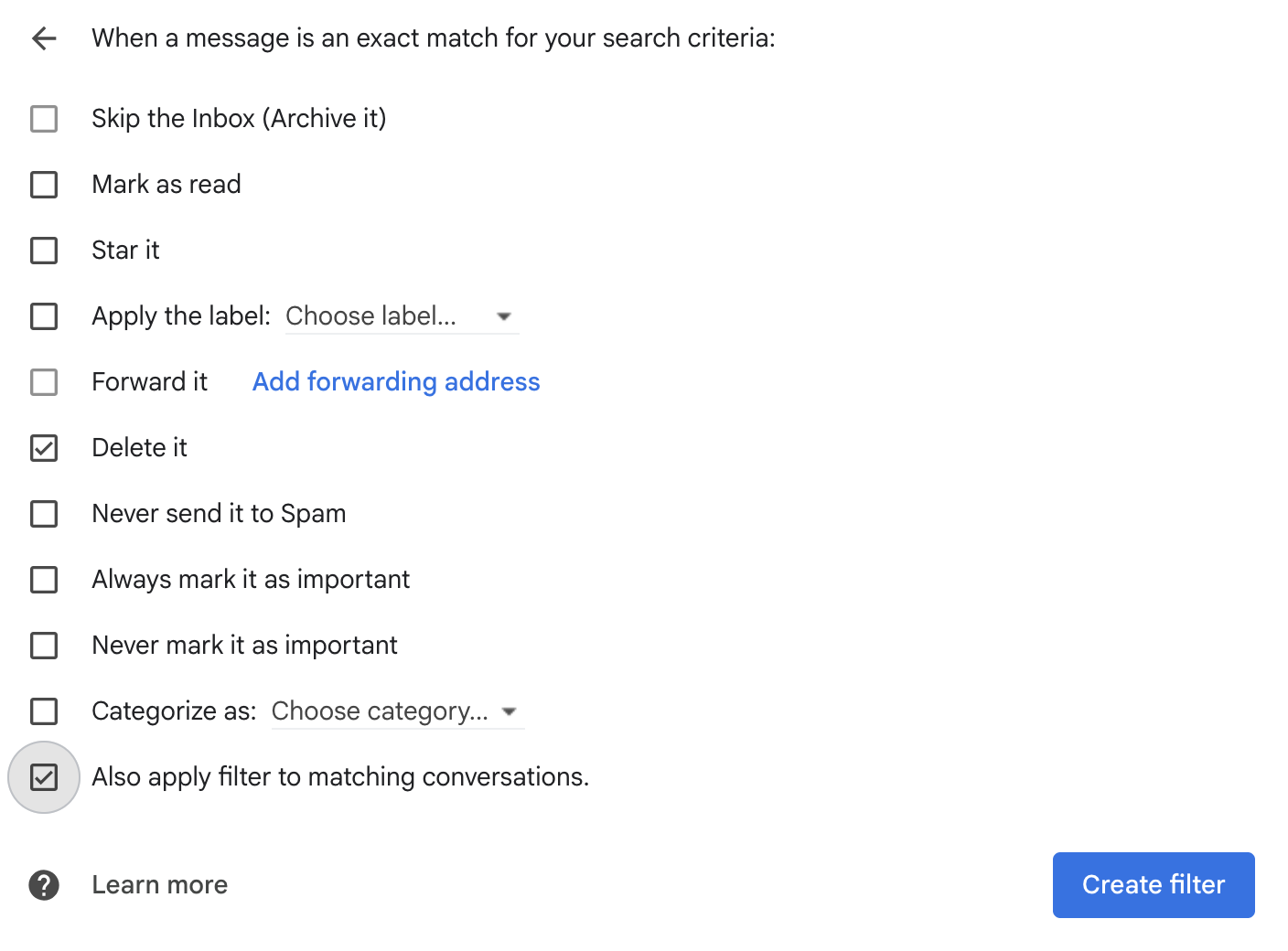
4. In the "Create Filter" section. Select "Delete It" and optional choose if you have received more than one email from the same sender also choose "Also apply filter to matching conversations". Once you select your filter(s) click "Create Filter."