# Welcome to CCA  (Staff Account Information)

[![cornerstone-logo-2025-2.webp](https://wiki.wearecornerstone.com/uploads/images/gallery/2025-09/scaled-1680-/cornerstone-logo-2025-2.webp)](https://wiki.wearecornerstone.com/uploads/images/gallery/2025-09/cornerstone-logo-2025-2.webp)

## Intro

Welcome to Cornerstone Christian Academy. This guide was made to help you with your new CCA Account.  
Your account is tied to access the many systems in our infrastructure, including your CCA issued device.

[![image.png](https://wiki.wearecornerstone.com/uploads/images/gallery/2025-09/scaled-1680-/8Jgimage.png)](https://wiki.wearecornerstone.com/uploads/images/gallery/2025-09/8Jgimage.png)
At CCA we use **Google Workspace Education** for our environment.  
These essential tools are part of the standard Google Workspace suite:

- **Gmail** – School email and primary communication hub.
- **Google Drive** – Cloud storage for files, assignments, and collaboration.
- **Docs, Sheets, Slides** – Real-time collaborative word processor, spreadsheet, and presentation tools.
- **Google Forms** – Create quizzes, surveys, and collect responses, which can feed into Sheets.
- **Google Calendar** – Schedule classes, meetings, and keep track of deadlines.
- **Google Classroom** – Centrally manage assignments, distribute materials, and engage students.
- **Google Chat** and **Google Meet** – Messaging and video conferencing for collaboration (Staff Only).
- **Google Tasks** – Integrated to-do list across Gmail and Calendar.
- **Google Keep** – Note-taking and organization tool.

## Account

  
This guide will help you \*\*set up and use your new CCA account\*\*, which provides access to email, school systems, and our Wi-Fi/network.

### Staff Username &amp; Email

CCA **staff** usernames are generated with the following format.:

- **Username format:** `First initial + last name` (e.g., John Doe → `jdoe`)
- **Email domain:** `@cornerstonephiladelphia.com`
- **Scope of access:** G Suite, Wi-Fi, PaperCut (Printing), Learning Platforms, Library Systems, etc.

<p class="callout info">If your username is already taken, a number may be appended (e.g., &#96;jdoe1&#96;). Contact IT to resolve issues.\*  
</p>

Please **Click** the arrow below:

<details id="bkmrk-%F0%9F%94%91-first-time-login-%26"><summary>🔑 First-Time Login &amp; Password Reset</summary>

Before using your CCA account, you’ll need to complete your **first login**.  
If you forget your password in the future, you’ll also use this same process to reset it.

👉 Directions:  
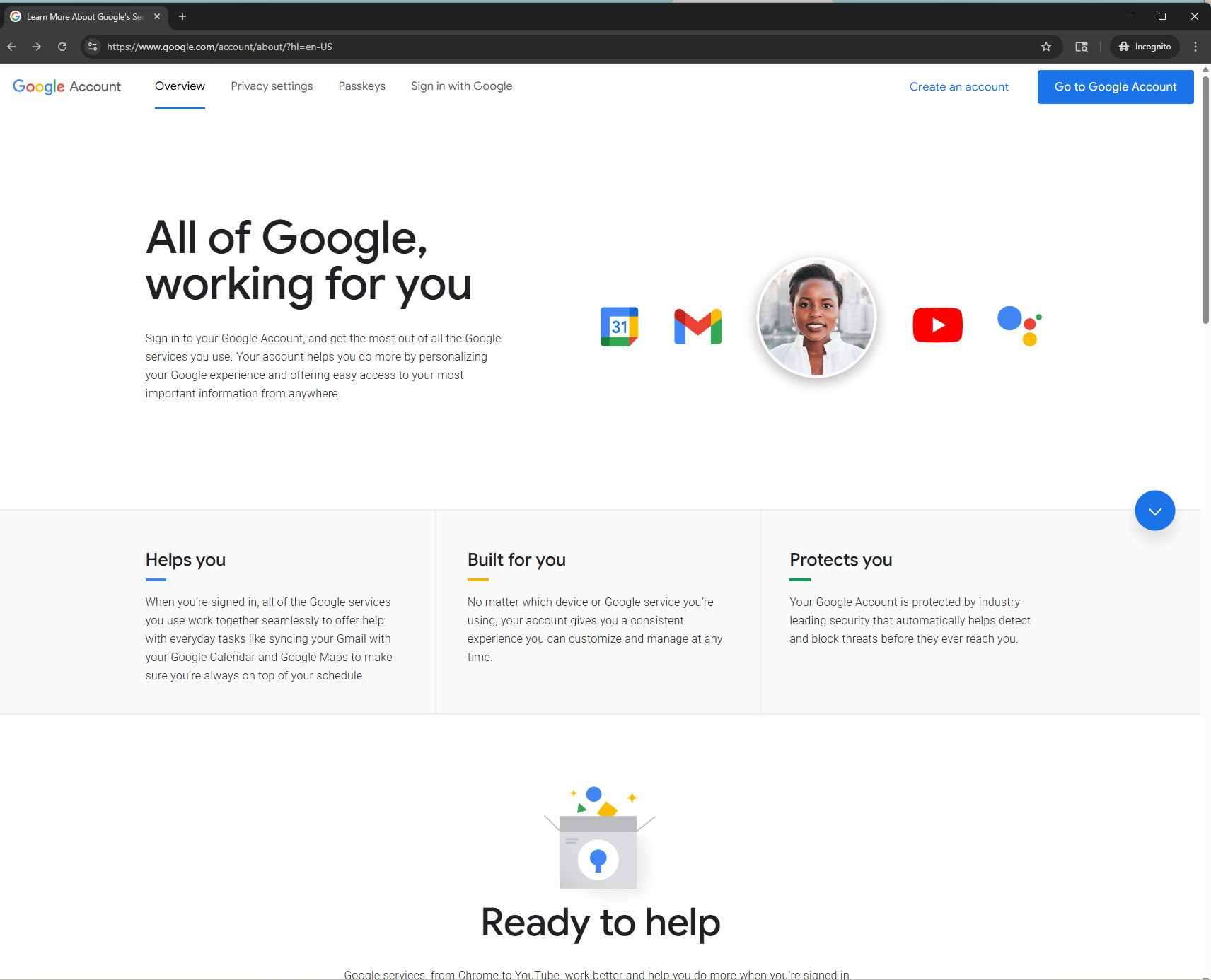
users must use a browser from mobile, Tablet or computer with an active internet connection. navigate to [myaccount.google.com](https://myaccount.google.com)

Click ""Go to Google Account"

[![image.png](https://wiki.wearecornerstone.com/uploads/images/gallery/2025-09/scaled-1680-/wgaimage.png)](https://wiki.wearecornerstone.com/uploads/images/gallery/2025-09/wgaimage.png)
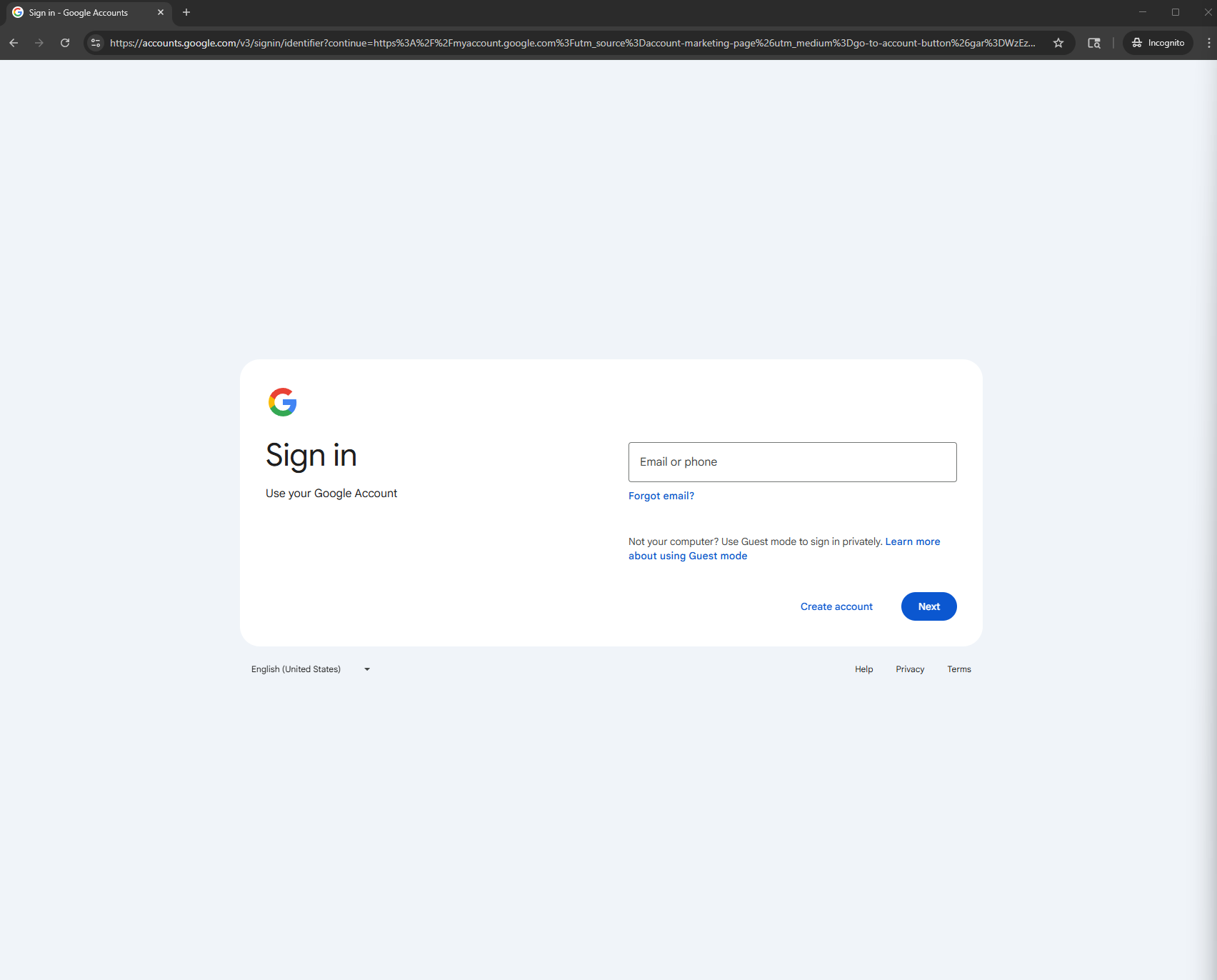
Enter your CCA Workspace **E-Mail** and **Temporary Password**

[![image.png](https://wiki.wearecornerstone.com/uploads/images/gallery/2025-09/scaled-1680-/yqPimage.png)](https://wiki.wearecornerstone.com/uploads/images/gallery/2025-09/yqPimage.png)
Google will ask you to enter the temporary password (current password) and give you the opportunity to enter a new strong password.

<p class="callout danger"><span style="text-decoration: underline;">ONLY After this process is completed</span> you can sign in a **CCA Device**</p>

</details>

> Important Notes
> 
> - Your **initial login** may require setting up recovery options.
> - Passwords must follow CCA security standards (minimum length, complexity, etc.).
> - If you encounter any issues, please **contact the IT Helpdesk** for assistance.

---

### 🚨 Security Alert: Protect Yourself from Email Phishing

Phishing emails are one of the most common ways attackers try to steal your personal information, passwords, or gain access to school accounts. Please follow these best practices to stay safe:

#### ✅ Best Practices

- **Think before you click** – Hover over links to verify the web address before opening.
- **Check the sender** – Confirm the email is from a trusted source (look carefully at spelling in the sender’s address).
- **Look for red flags** – Urgent requests, poor spelling/grammar, or offers that seem too good to be true are often scams.
- **Don’t open unexpected attachments** – Only open files you are expecting and from people you know.
- **Verify requests for sensitive information** – CCA IT will **never** ask for your password over email.
- **Report suspicious emails** – If you are unsure, forward the email to **<helpdesk@cornerstonephiladelphia.com><a class="decorated-link cursor-pointer" data-end="1165" data-start="1142" rel="noopener"> </a>**

> #### ⚠️ Remember
> 
> Your CCA account is the key to email, learning systems, and school apps. Keeping it secure protects **you** and the **school community**.

---

## Resources

Bookmark this Wiki for quick reference! We update the articles contained on this wiki to keep staff and students informed. We use this wiki as a place to provide guidance in things that are useful  and easy to understand for end-users. Please check-out other articles like some of the ones we listed below:

- [Print How To's](https://wiki.wearecornerstone.com/books/papercut-user-follow-me-printing/chapter/cca-print-how-tos)
- [How to Access you PaperCut Account](https://wiki.wearecornerstone.com/books/papercut-user-follow-me-printing/page/how-to-access-your-papercut-account)
- [How to Submit IT Helpdesk Ticket](https://wiki.wearecornerstone.com/books/help-basics/page/how-to-submit-an-it-helpdesk-ticket "🎟️How to Submit an IT Helpdesk Ticket")
- [How to make Copies](https://wiki.wearecornerstone.com/books/papercut-user-follow-me-printing/page/how-to-make-copies "How to Make Copies")
- [How to Scan Documents](https://wiki.wearecornerstone.com/books/papercut-user-follow-me-printing/page/how-to-scan-documents "How to Scan Documents")