# FOLLOW_ME Printing Troubleshooting Steps
In this chapter you can find all troubleshooting steps for the FOLLOW\_ME printers. Please look over the steps provided. After performing the troubleshooting steps and you are not successful. Submit a ticket to helpdesk@cornerstonephiladelphia.com.
# Steps to Release Print Jobs.
This is a follow-up regarding the copiers. If you are experiencing printing issues, please try the steps below:
**Important Note: Before releasing your print jobs, please double-check that they are not duplicates to avoid printing the same job multiple times.**
1. Open **System Settings** (you can also search for it; the icon looks like a gray gear[](https://wiki.wearecornerstone.com/uploads/images/gallery/2025-09/system-settings-icon.jpeg)).[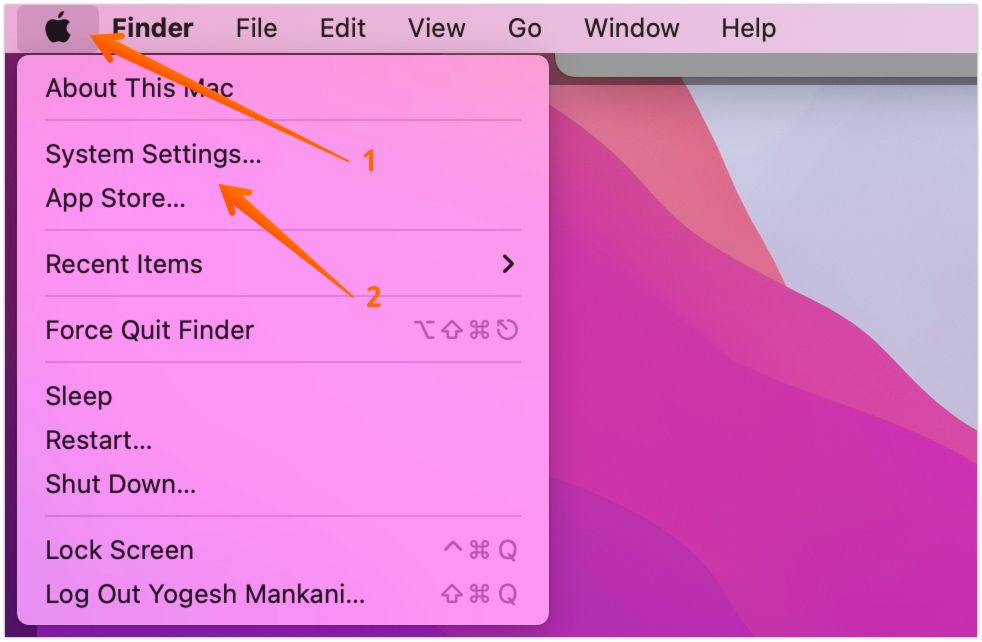](https://wiki.wearecornerstone.com/uploads/images/gallery/2025-09/open-system-settings-in-mac.jpg)
2. In **System Settings**, scroll down and select **Printers & Scanners**.[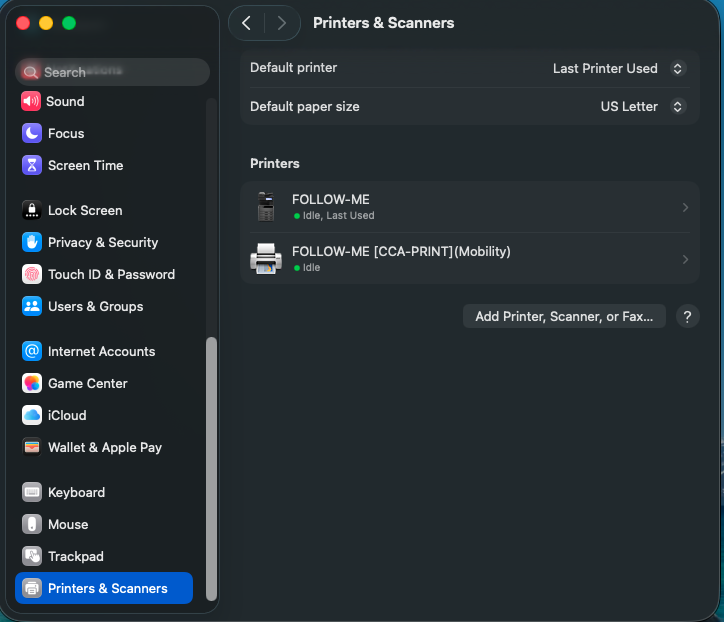](https://wiki.wearecornerstone.com/uploads/images/gallery/2025-09/screenshot-2025-09-29-at-9-47-35-am.png)
3. Select the **Follow Me** printer.
4. Click **Printer Queue**.
5. [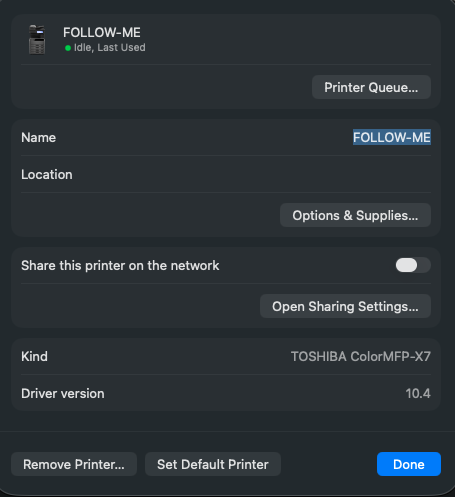](https://wiki.wearecornerstone.com/uploads/images/gallery/2025-09/screenshot-2025-09-29-at-9-48-12-am.png)
6. In the Printer Queue window:
- Click the **Play button** in the top-right corner (above your print jobs).
- [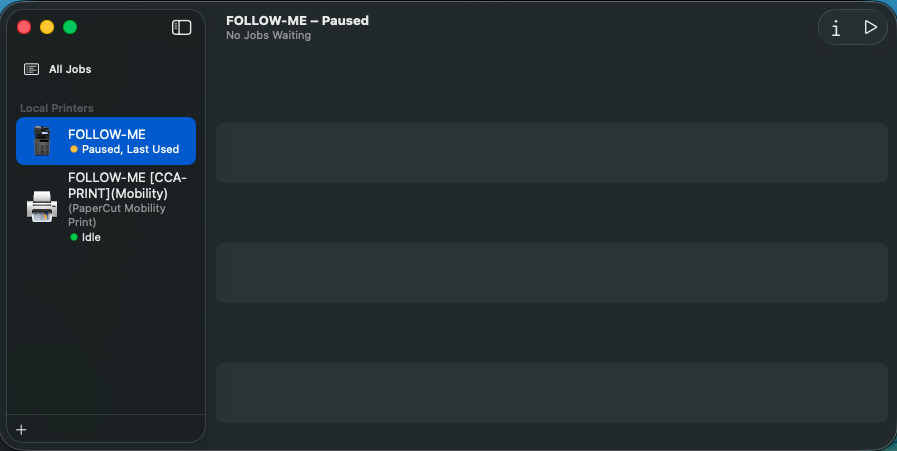](https://wiki.wearecornerstone.com/uploads/images/gallery/2025-09/screenshot-2025-09-29-at-9-48-31-am.png)
- The Play button will switch to a **Pause button** once it’s active.
- [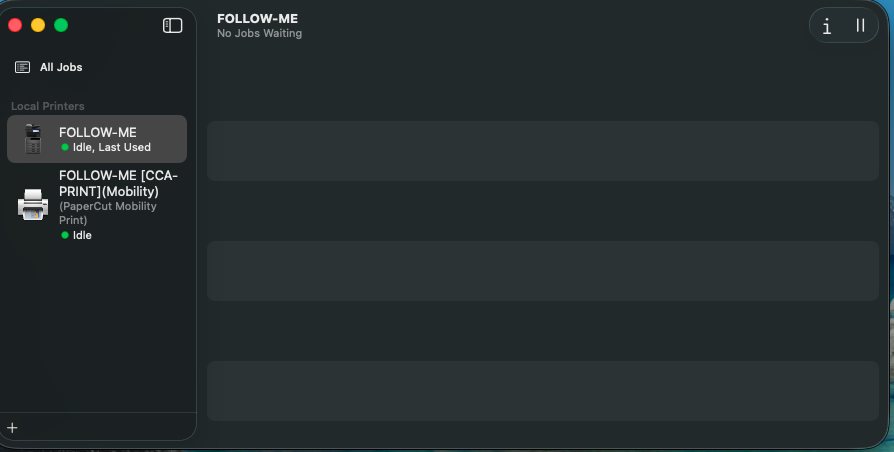](https://wiki.wearecornerstone.com/uploads/images/gallery/2025-09/screenshot-2025-09-29-at-10-05-48-am.png)
- Then, release your print jobs by clicking the **Play button** next to each print job that you want released. If you do not want the print jobs just click the "x" next to the print job.
- **Important Note: Before releasing your print jobs, please double-check that they are not duplicates to avoid printing the same job multiple times.**
Once your jobs go through, you will be able to print normally.
**Note\* If it asks you for administrator credentials to unpause the printer. Please submit a ticket to helpdesk@cornerstonephiladelphia.com**