# PaperCut-User (Follow-Me printing)

What is PaperCut?

PaperCut is the print management system we use at Cornerstone Christian Academy to print, copy and scan documents.

# 📄What is papercut?

[![Gemini_Generated_Image_vr4s8cvr4s8cvr4s.png](https://wiki.wearecornerstone.com/uploads/images/gallery/2025-09/scaled-1680-/fIPgemini-generated-image-vr4s8cvr4s8cvr4s.png)](https://wiki.wearecornerstone.com/uploads/images/gallery/2025-09/fIPgemini-generated-image-vr4s8cvr4s8cvr4s.png)

<span class="citation-21 citation-end-21">PaperCut is the print management system we use at Cornerstone Christian Academy to make printing, copying, and </span><span class="citation-21 citation-end-21">scanning smarter and more secure.<sup class="superscript" data-turn-source-index="1"></sup></span> Think of it as a helpful assistant for our printers that ensures we are being good stewards of our school’s resources while also making printing easier and more confidential for you

---

## Key Features &amp; How They Help Us

<span class="citation-20 citation-end-20">PaperCut provides several key benefits that you'll notice right away.<sup class="superscript" data-turn-source-index="2"></sup></span>

- **Secure &amp; Confidential Printing:** This is the most important feature, often called **"FOLLOW-ME".**  Instead of printing directly to one specific printer (and potentially leaving a sensitive document like a test or student report for anyone to see), your job is held securely. You can walk up to any enabled printer/copier, tap your ID card or log in, and release your document right then and there. Your print job finds you!
- **<span class="citation-19">Easy Printing from Any Device:</span>**<span class="citation-19 citation-end-19"> You can easily print from a school computer, Chromebook, or even a tablet without needing special drivers or complex setup.  
      
    </span>
- <span class="citation-19 citation-end-19"><sup class="superscript" data-turn-source-index="3"></sup></span>**<span class="citation-18">Responsible Stewardship:</span>**<span class="citation-18 citation-end-18"> The system helps us track our printing, which encourages everyone to be mindful of how much paper and toner we use.<sup class="superscript" data-turn-source-index="4"></sup></span> This reduces waste and saves money, allowing us to invest more into other important areas of our academy.
- **<span class="citation-17">Simple Scanning:</span>**<span class="citation-17 citation-end-17"> PaperCut makes scanning easier than ever.<sup class="superscript" data-turn-source-index="5"></sup></span> <span class="citation-16 citation-end-16">With a single touch, you can scan documents directly to your own email or cloud storage folders like Google Drive.</span>

[![image.png](https://wiki.wearecornerstone.com/uploads/images/gallery/2025-09/scaled-1680-/GGAimage.png)](https://wiki.wearecornerstone.com/uploads/images/gallery/2025-09/GGAimage.png)

# 🔒How to Access Your PaperCut Account

You can easily access your PaperCut account to **find your ID #**, check your print balance, see your environmental impact, and view your transaction history. We've made it simple by connecting it to your school's Google Workspace account.

---

### Logging In with Google

Follow these simple steps to access your account:

1. **Navigate to the PaperCut Portal:** Open your web browser and go to the following address:   
    [https://cca-print.wearecornerstone.com](https://cca-print.wearecornerstone.com)
2. **Use the Google Login Option:** On the login page, you don't need to enter a username or password. Simply click on the **"Sign in with Google"** button.
    
    <div class="attachment-container generated-images"><div _ngcontent-ng-c3694662178="" class="loader">  
    </div><div _ngcontent-ng-c149334853="" class="image-container replace-fife-images-at-export ng-star-inserted" replace-fife-images-at-export=""><div _ngcontent-ng-c149334853="" class="overlay-container ng-star-inserted"></div></div></div>[![image.png](https://wiki.wearecornerstone.com/uploads/images/gallery/2025-09/scaled-1680-/Z3Oimage.png)](https://wiki.wearecornerstone.com/uploads/images/gallery/2025-09/Z3Oimage.png)
    
      
    <div class="attachment-container generated-images"><div _ngcontent-ng-c149334853="" class="image-container replace-fife-images-at-export ng-star-inserted" replace-fife-images-at-export=""><div _ngcontent-ng-c149334853="" class="overlay-container ng-star-inserted">  
    <div _ngcontent-ng-c3694662178="" class="generated-image-controls hide-from-message-actions ng-star-inserted" hide-from-message-actions="" overlay=""><div _ngcontent-ng-c3476118502="" class="button-icon-wrapper"></div></div></div></div></div>
3. **Select Your School Account:** You will be redirected to a Google sign-in page. If you are already logged into your school Google account, you may just need to select it from a list. If not, please enter your Cornerstone Christian Academy email address and password.
    
    [![image.png](https://wiki.wearecornerstone.com/uploads/images/gallery/2025-09/scaled-1680-/wg8image.png)](https://wiki.wearecornerstone.com/uploads/images/gallery/2025-09/wg8image.png)
    
    [![image.png](https://wiki.wearecornerstone.com/uploads/images/gallery/2025-09/scaled-1680-/qCrimage.png)](https://wiki.wearecornerstone.com/uploads/images/gallery/2025-09/qCrimage.png)
4. **Done!** You will be automatically logged into your personal PaperCut dashboard.
    
    [![image.png](https://wiki.wearecornerstone.com/uploads/images/gallery/2025-09/scaled-1680-/yvXimage.png)](https://wiki.wearecornerstone.com/uploads/images/gallery/2025-09/yvXimage.png)

# How to Register your ID Card

# How to register your ID Card to a PaperCut account

1\. Go to any printer on campus and scan your ID card.

2\. If your card is not already linked to your account, you will see the following prompt “**Unknown card. To associate this card with your account, enter your username and password, then tap your ID Card.”**

[![image.png](https://wiki.wearecornerstone.com/uploads/images/gallery/2026-06/scaled-1680-/image.png)](https://wiki.wearecornerstone.com/uploads/images/gallery/2026-06/image.png)

**<span style="text-decoration: underline;">Note: You will be using your Google Account credentials to register your card.</span>**

Tap the **Username** box and an on-screen keyboard will appear. Enter your username (**without** @cornerstonephiladelphia.com). If your full email address is entered, your card will not register.

4\. Tap the **Password** box and enter your current cornerstone google password.

5\. Tap the **Log in** Button.

6\. You should now see a screen confirming that your card has been associated with your user account. Tap **OK** to complete registration.

[![image.png](https://wiki.wearecornerstone.com/uploads/images/gallery/2026-06/scaled-1680-/w3Limage.png)](https://wiki.wearecornerstone.com/uploads/images/gallery/2026-06/w3Limage.png)

7\. Test your ID card by tapping it on the card reader. You should be automatically logged in.

<span style="text-decoration: underline;">Note: If you do not have your card on you. Please use your Google credentials or ID number to login onto the printers.</span>

# CCA-PRINT How To's

# How to Print-Part 1 ( Print from Computer)

We will be installing **PaperCut Print Deploy Client** to all school devices and computers. Once the software is installed, it will automatically open its main window *(see below)*, prompting the user to sign-in or, will located at the top right bar on MacOS.

![](https://rnwsupport.barry.edu/Answers/155197/7-PaperCutPrintDeployClient1.png)

Once you sign-in, the new **FOLLOW-ME** print queue will be installed on the computer, and will appear in your printer list when you go to print. If you see the green **Sign In** button (as shown in the image above), do so to complete the installation. Use this print queue to send all print jobs to the new release print system.

<p class="callout info">*\*\*\* All print jobs will be held in a secure queue until you release (print) them or delete them from the job list at an Printer. If not printed or manually deleted, they will be automatically deleted after 8 hours. \*\*\**</p>

# How to Print- Part 2 (Staff Login Printer)

## Printer Sign in

<p class="callout danger"><span style="color: rgb(52, 73, 94);">**<u>There are 3 ways to login to the MFPs…</u>**</span></p>

##### **Click the arrows on the left side to display directions:**

<details id="bkmrk-cca-badge-tap-your%C2%A0i"><summary>CCA Badge</summary>

Tap your **ID card** on the printer at the icon (shown below) to left of the touch panel*.*

<p class="callout info">The first time you do this, you will be prompted to enter your **Username** (fist initial, last name. ex=jdoe) and **Password** ( related to your CCA Google Workspace Account )to associate the card with your cca-print account. After that, simply TAP and it will identify your account.</p>

![](https://rnwsupport.barry.edu/Answers/155197/2-Tap.png)

</details><details id="bkmrk-id-number-%285-digit-p"><summary>ID Number (5-Digit PIN #)</summary>

- Select **ID Number**
- Type **ID number.** ( *found on* **cca-print** ***account** page. see [How to Access Your PaperCut Account](https://wiki.wearecornerstone.com/books/papercut-user-follow-me-printing/page/how-to-access-your-papercut-account "🔒How to Access Your PaperCut Account") )*

[![image.png](https://wiki.wearecornerstone.com/uploads/images/gallery/2025-09/scaled-1680-/4Udimage.png)](https://wiki.wearecornerstone.com/uploads/images/gallery/2025-09/4Udimage.png)

</details><details id="bkmrk-username-password-en"><summary>Username Password</summary>

Enter **Username** *(first initial lastname e.g jdoe)* and **Password**

[![papercut login 1 buttons.png.webp](https://wiki.wearecornerstone.com/uploads/images/gallery/2025-09/scaled-1680-/papercut-login-1-buttons-png.webp)](https://wiki.wearecornerstone.com/uploads/images/gallery/2025-09/papercut-login-1-buttons-png.webp)

</details>---

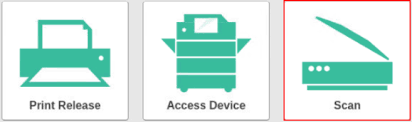
Once logged in, you have 3 options:

![](https://rnwsupport.barry.edu/Answers/155197/3-3Options.png)

1. **Print**
2. **Copy**
3. **Scan** - to ***Email***, or ***Google Drive***

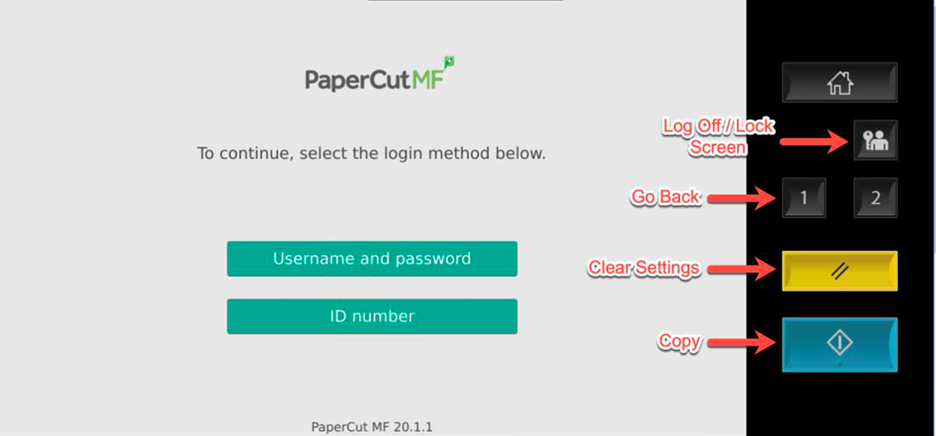
The system will automatically log you off after 45 seconds of no activity. To manually log off, you can click the **Log Off / Lock Screen** or **Clear Settings** buttons *(see image above)*, or click the log out icon next to your name in the top section of the touch screen

# How to Print-Part 3 (Job Release)

##   


**<u>How to Release a Print Job</u>**

Login to an  printer *(see this [page](https://wiki.wearecornerstone.com/books/papercut-user-follow-me-printing/page/how-to-print-part-2-staff-login-printer "How to use the PaperCut Print system - Faculty and Staff"))*. Once logged in, you’ll see the number of print jobs/pages in your queue at the top of the screen. You can select the **Print all** button to print them all with no changes.

![](https://rnwsupport.barry.edu/Answers/155197/4-ReleaseJob1.png)

Or tap the **Print Release** button, to view the print job list. Here you can select the specific print job you want to print, and optionally change settings (# of copies, single/double-sided, etc) by tapping the "&gt;" button to the right of the print job.

![](https://rnwsupport.barry.edu/Answers/155197/4-ReleaseJob2.png)

Select the desired job and tap **Print**.

You can also manually delete a print job if desired *(before the 8-hour time limit)*.

<p class="callout info">*\*\*\* The default settings for CCA print jobs are B/W and Double-sided. \*\*\**</p>

# How to use the PaperCut Print system - Faculty and Staff- Full

All new Toshiba multifunction printers (MFPs) will be streamlined to have the same buttons/functions. The image below is an example of the main login screen and button functions.
![](https://rnwsupport.barry.edu/Answers/155197/1-PaperCutSystem.png)

## Printer Sign in

<p class="callout info">**<u>There are 3 ways to login to the MFPs…</u>**  
</p>

1. Tap your **ID card** on the MFP at the icon (shown below) to left of the touch panel*.*

<p class="callout info">The first time you do this, you will be prompted to enter your **Username** (fist initial, last name. ex=jdoe) and **Password** to associate the card with your account. After that, simply TAP and it will identify your account.</p>

![](https://rnwsupport.barry.edu/Answers/155197/2-Tap.png)

1. Type **ID number.**
2. Enter **Username** *(full email address)* and **Password**

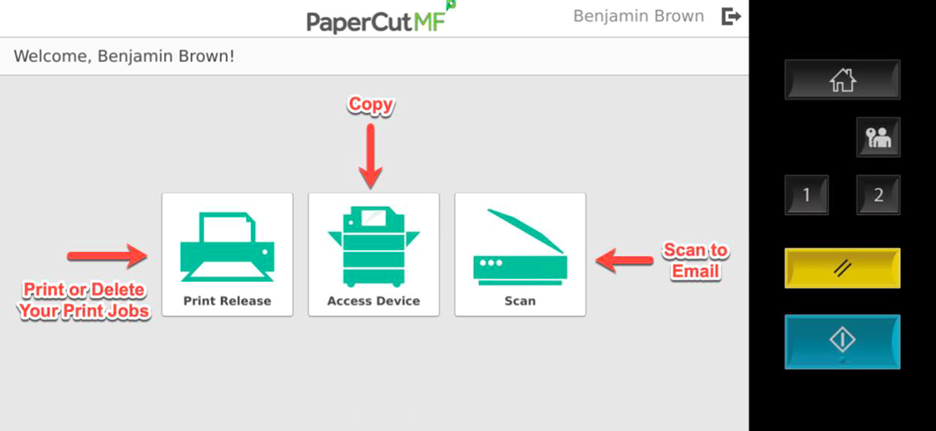
Once logged in, you have 3 options:
![](https://rnwsupport.barry.edu/Answers/155197/3-3Options.png)

1. **Print**
2. **Copy**
3. **Scan** - to ***Email***, ***Fax***, or ***Google Drive***

The system will automatically log you off after 45 seconds of no activity. To manually log off, you can click the **Log Off / Lock Screen** or **Clear Settings** buttons *(see image above)*, or click the log out icon next to your name in the top section of the touch screen *(see image below)*.

**<u>How to Submit a Print Job</u>**

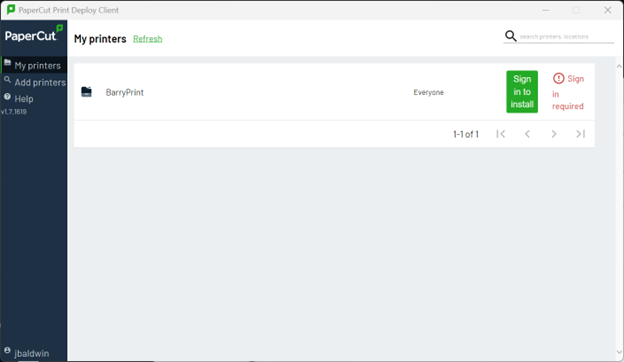
We will be deploying **PaperCut Print Deploy Client** to all school computers. Once the software is installed, it will automatically open its main window *(see below)*, prompting the user to sign-in.
![](https://rnwsupport.barry.edu/Answers/155197/7-PaperCutPrintDeployClient1.png)

Once you sign-in, the new **FOLLOW-ME** print queue will be installed on the computer, and will appear in your printer list when you go to print. If you see the green **Sign In** button (as shown in the image above), do so to complete the installation. Use this print queue to send all print jobs to the new release print system.

<p class="callout info">*\*\*\* All print jobs will be held in a secure queue until you release (print) them or delete them from the job list at an MFP. If not printed or manually deleted, they will be automatically deleted after 24 hours. \*\*\**</p>

## Print Job Release

**<u>How to Release a Print Job</u>**

Login to an MFP *(see steps above)*. Once logged in, you’ll see the number of print jobs/pages in your queue at the top of the screen. You can select the **Print all** button to print them all with no changes.
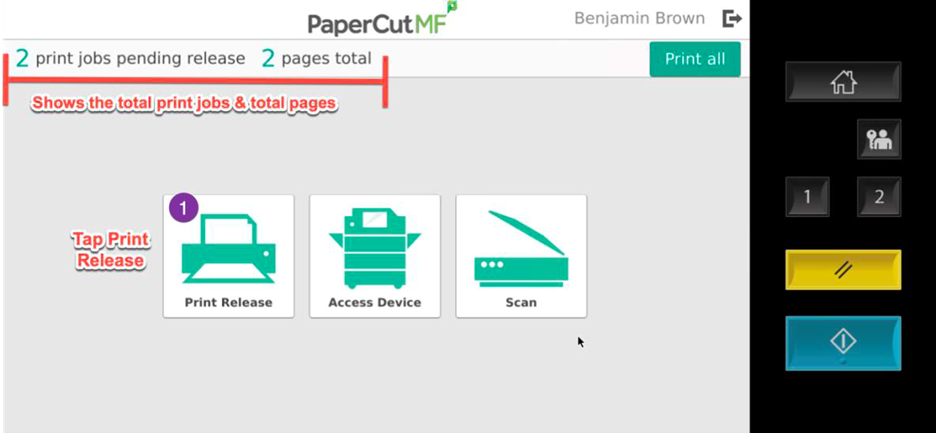
![](https://rnwsupport.barry.edu/Answers/155197/4-ReleaseJob1.png)

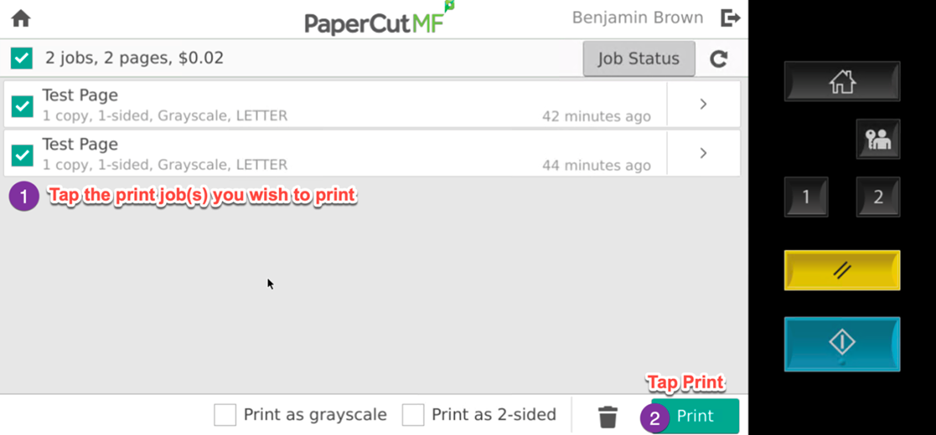
Or tap the **Print Release** button, to view the print job list. Here you can select the specific print job you want to print, and optionally change settings (# of copies, single/double-sided, etc) by tapping the "&gt;" button to the right of the print job.
![](https://rnwsupport.barry.edu/Answers/155197/4-ReleaseJob2.png)

Select the desired job and tap **Print**.

You can also manually delete a print job if desired *(before the 24-hour time limit)*.

<p class="callout info">*\*\*\* The default settings for CCA print jobs are B/W and Double-sided. \*\*\**</p>

## Making Copies

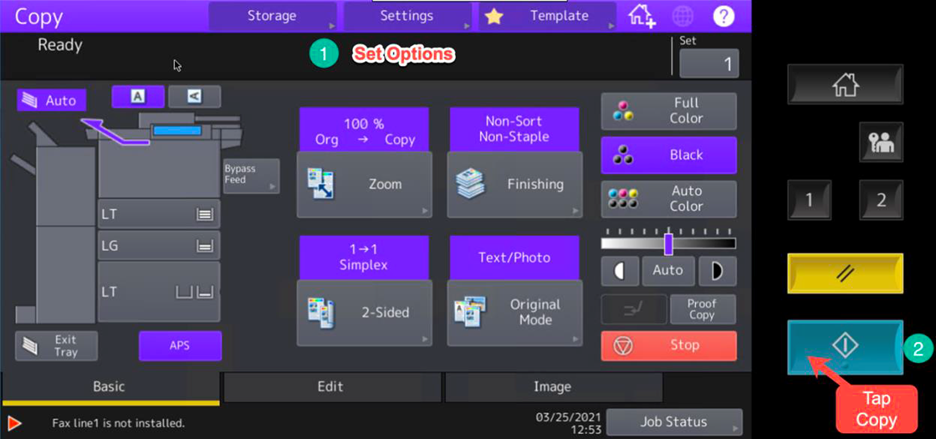
Login to an MFP *(see steps above)* and tap the **Copy** button. The screen will change to the MFP's copy interface, showing choices for 1 or 2-sided, B/W or Color, # of copies, etc. Tap the Copy physical button to start the copy, or you can tap the **1** button to go back *(see example image below)*.
![](https://rnwsupport.barry.edu/Answers/155197/5-MakeCopies1.png)

**<u>Scan to </u><u>Email/Other email</u>**

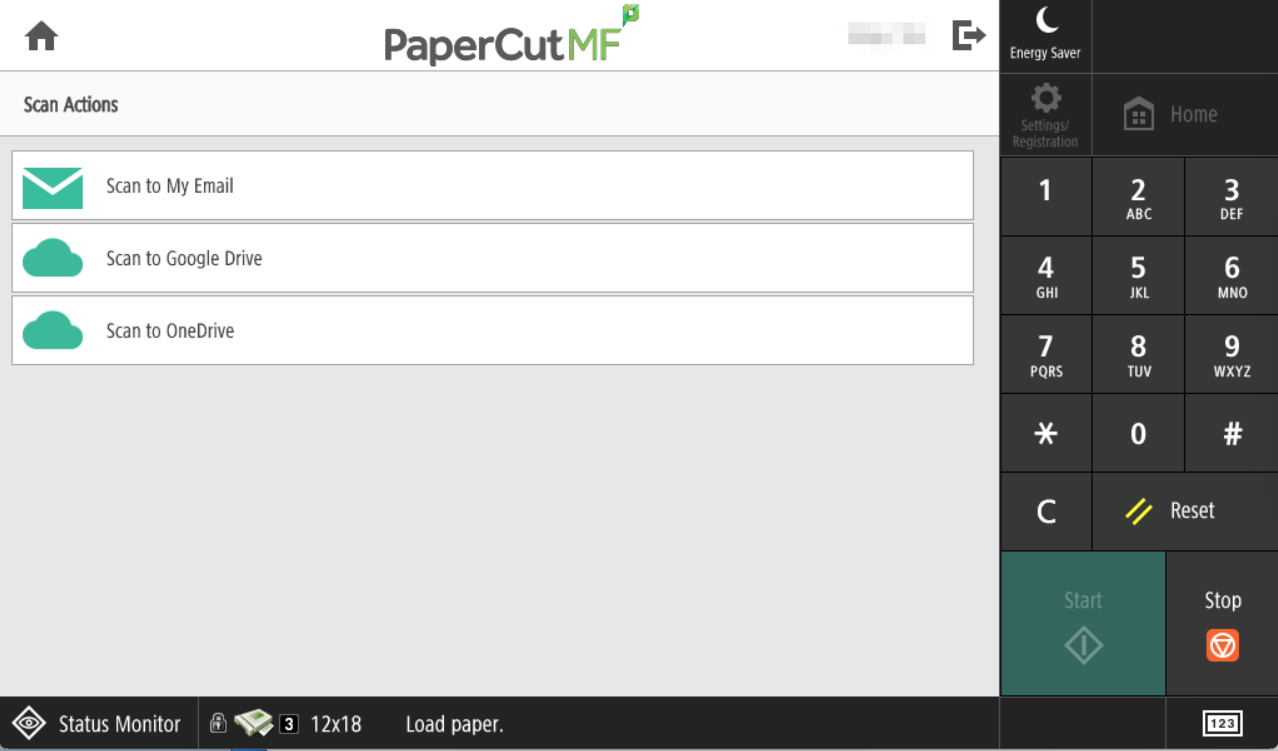
When you select **Scan to Email**, your CCA email is automatically used as the source for the scanned email. You can change the **Filename** for the scanned file or change DPI and other settings *(these are all optional)*. Then load the paper to scan and tap **Start**. When prompted you can load additional paper or simply tap **Finish** to completed the scan and send the email.

The scanned page(s) will come into your CCA email inbox, with your CCA email as the sender. If you don’t see the email in your inbox, check your Junk folder.

**Scan to Other Email** works the same way, except you must fill in the **Email** field for the email you want to send the scans to.

# How to Make Copies

Login to an printer *(see this [page](https://wiki.wearecornerstone.com/books/papercut-user-follow-me-printing/page/how-to-print-part-2-staff-login-printer "How to use the PaperCut Print system - Faculty and Staff- Full"))* and tap the **Copy** button. The screen will change to the MFP's (Multi Function Printer) copy interface, showing choices for 1 or 2-sided, B/W or Color, # of copies, etc. Tap the Copy physical button to start the copy, or you can tap the **1** button to go back *(see example image below)*.

[![image.png](https://wiki.wearecornerstone.com/uploads/images/gallery/2025-09/scaled-1680-/gtbimage.png)](https://wiki.wearecornerstone.com/uploads/images/gallery/2025-09/gtbimage.png)![](https://rnwsupport.barry.edu/Answers/155197/5-MakeCopies1.png)

# How to Scan Documents

**<u>Scan to </u><u>Email/Other email</u>**

[![image.png](https://wiki.wearecornerstone.com/uploads/images/gallery/2025-09/scaled-1680-/YV3image.png)](https://wiki.wearecornerstone.com/uploads/images/gallery/2025-09/YV3image.png)

When you select **Scan to Email**, your CCA email is automatically used as the source for the scanned email. You can change the **Filename** for the scanned file or change DPI and other settings *(these are all optional)*. Then load the paper to scan and tap **Start**. When prompted you can load additional paper or simply tap **Finish** to completed the scan and send the email.

The scanned page(s) will come into your CCA email inbox, with your CCA email as the sender.

<p class="callout warning"> If you don’t see the email in your inbox, check your Junk folder.</p>

**Scan to Other Email** works the same way, except you must fill in the **Email** field for the email you want to send the scans to.

[![image.png](https://wiki.wearecornerstone.com/uploads/images/gallery/2025-09/scaled-1680-/bbjimage.png)](https://wiki.wearecornerstone.com/uploads/images/gallery/2025-09/bbjimage.png)
# FOLLOW_ME Printing Troubleshooting Steps

In this chapter you can find all troubleshooting steps for the FOLLOW\_ME printers. Please look over the steps provided. After performing the troubleshooting steps and you are not successful. Submit a ticket to helpdesk@cornerstonephiladelphia.com.

# Steps to Release Print Jobs.

This is a follow-up regarding the copiers. If you are experiencing printing issues, please try the steps below:

**<span style="text-decoration: underline;">Important Note: Before releasing your print jobs, please double-check that they are not duplicates to avoid printing the same job multiple times.</span>**

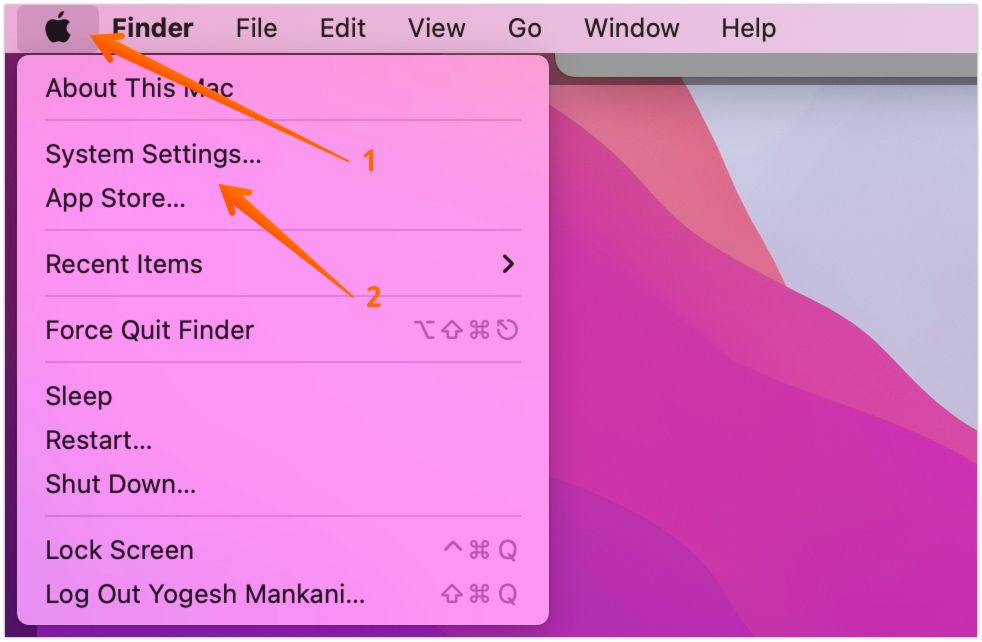
1. Open **System Settings** (you can also search for it; the icon looks like a gray gear[![system settings icon.jpeg](https://wiki.wearecornerstone.com/uploads/images/gallery/2025-09/scaled-1680-/system-settings-icon.jpeg)](https://wiki.wearecornerstone.com/uploads/images/gallery/2025-09/system-settings-icon.jpeg)).[![open-system-settings-in-mac.jpg](https://wiki.wearecornerstone.com/uploads/images/gallery/2025-09/scaled-1680-/open-system-settings-in-mac.jpg)](https://wiki.wearecornerstone.com/uploads/images/gallery/2025-09/open-system-settings-in-mac.jpg)

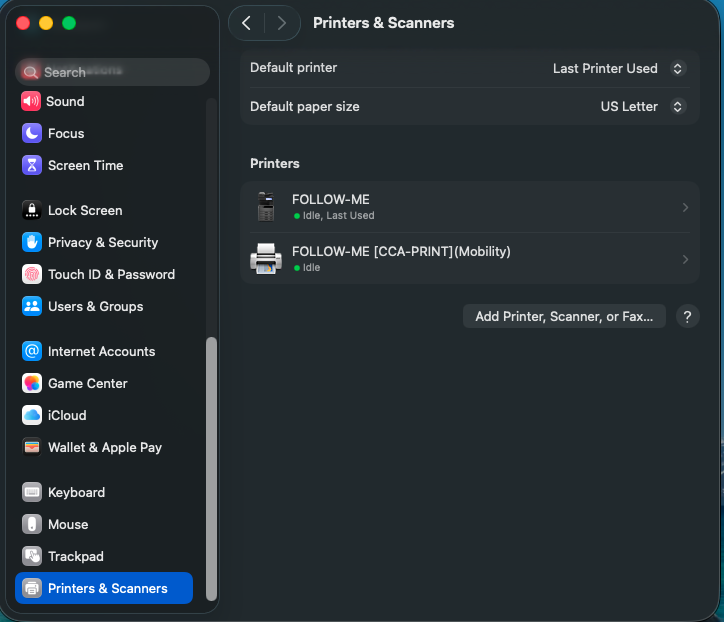
2. In **System Settings**, scroll down and select **Printers &amp; Scanners**.[![Screenshot 2025-09-29 at 9.47.35 AM.png](https://wiki.wearecornerstone.com/uploads/images/gallery/2025-09/scaled-1680-/screenshot-2025-09-29-at-9-47-35-am.png)](https://wiki.wearecornerstone.com/uploads/images/gallery/2025-09/screenshot-2025-09-29-at-9-47-35-am.png)
3. Select the **Follow Me** printer.
4. Click **Printer Queue**.
5. [![Screenshot 2025-09-29 at 9.48.12 AM.png](https://wiki.wearecornerstone.com/uploads/images/gallery/2025-09/scaled-1680-/screenshot-2025-09-29-at-9-48-12-am.png)](https://wiki.wearecornerstone.com/uploads/images/gallery/2025-09/screenshot-2025-09-29-at-9-48-12-am.png)
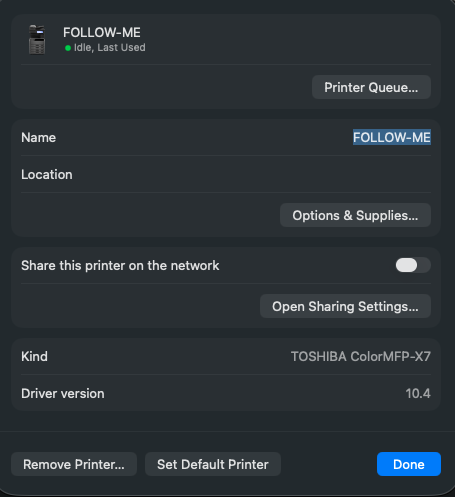
6. In the Printer Queue window:
    
    
    - Click the **Play button** in the top-right corner (above your print jobs).
    - [![Screenshot 2025-09-29 at 9.48.31 AM.png](https://wiki.wearecornerstone.com/uploads/images/gallery/2025-09/scaled-1680-/screenshot-2025-09-29-at-9-48-31-am.png)](https://wiki.wearecornerstone.com/uploads/images/gallery/2025-09/screenshot-2025-09-29-at-9-48-31-am.png)
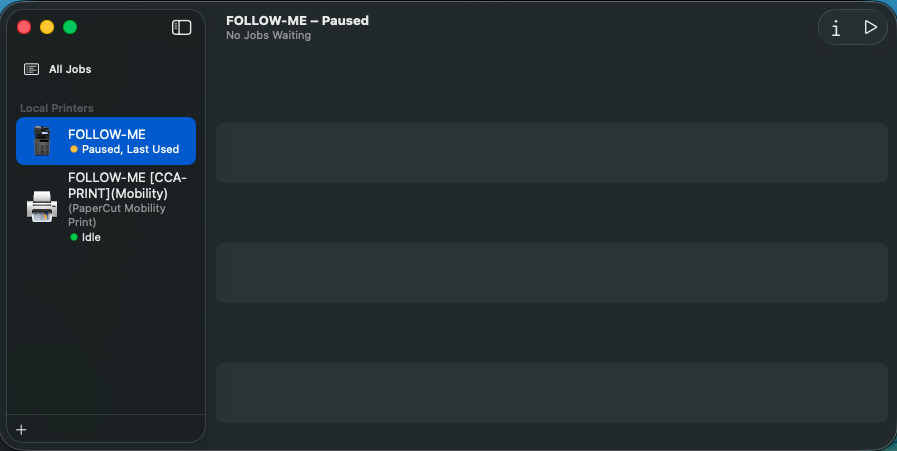
    - The Play button will switch to a **Pause button** once it’s active.
    - [![Screenshot 2025-09-29 at 10.05.48 AM.png](https://wiki.wearecornerstone.com/uploads/images/gallery/2025-09/scaled-1680-/screenshot-2025-09-29-at-10-05-48-am.png)](https://wiki.wearecornerstone.com/uploads/images/gallery/2025-09/screenshot-2025-09-29-at-10-05-48-am.png)
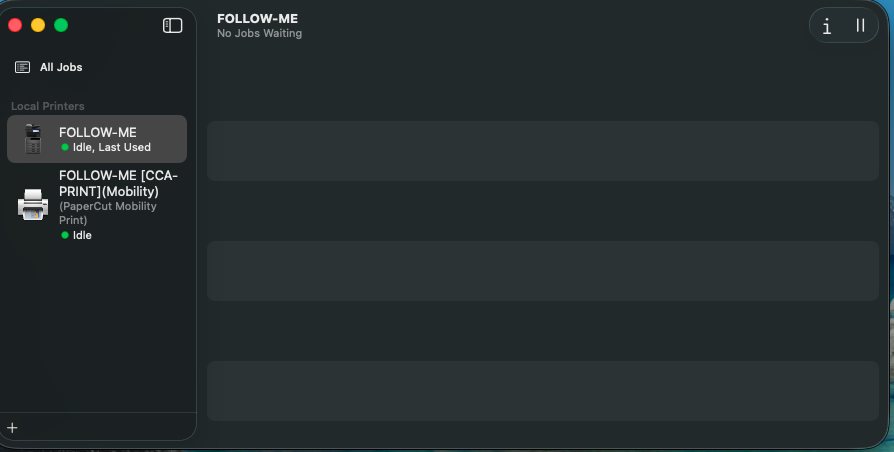
    - Then, release your print jobs by clicking the **Play button** next to each print job that you want released. If you do not want the print jobs just click the "x" next to the print job.
        
        
        - **<span style="text-decoration: underline;">Important Note: Before releasing your print jobs, please double-check that they are not duplicates to avoid printing the same job multiple times.</span>**

Once your jobs go through, you will be able to print normally.

<span style="color: rgb(224, 62, 45);">**<span style="text-decoration: underline;">Note\* If it asks you for administrator credentials to unpause the printer. Please submit a ticket to helpdesk@cornerstonephiladelphia.com</span>**</span>

# How to Navigate to CoreFax/XMedius

# Navigating to CoreFax/XMedius

1. Log into the print using your badge, account credentials, and/or your ID pin number.[![papercut.png](https://wiki.wearecornerstone.com/uploads/images/gallery/2025-11/scaled-1680-/papercut.png)](https://wiki.wearecornerstone.com/uploads/images/gallery/2025-11/papercut.png)
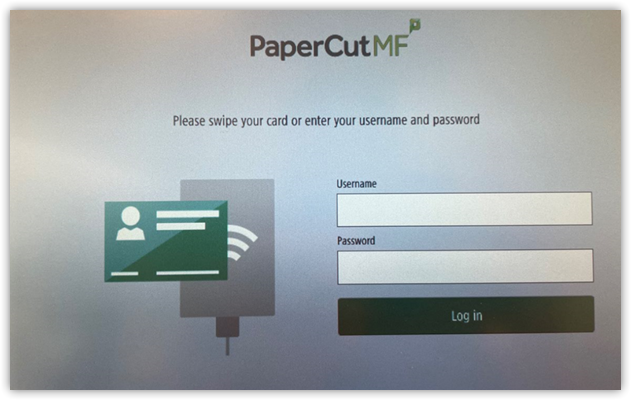
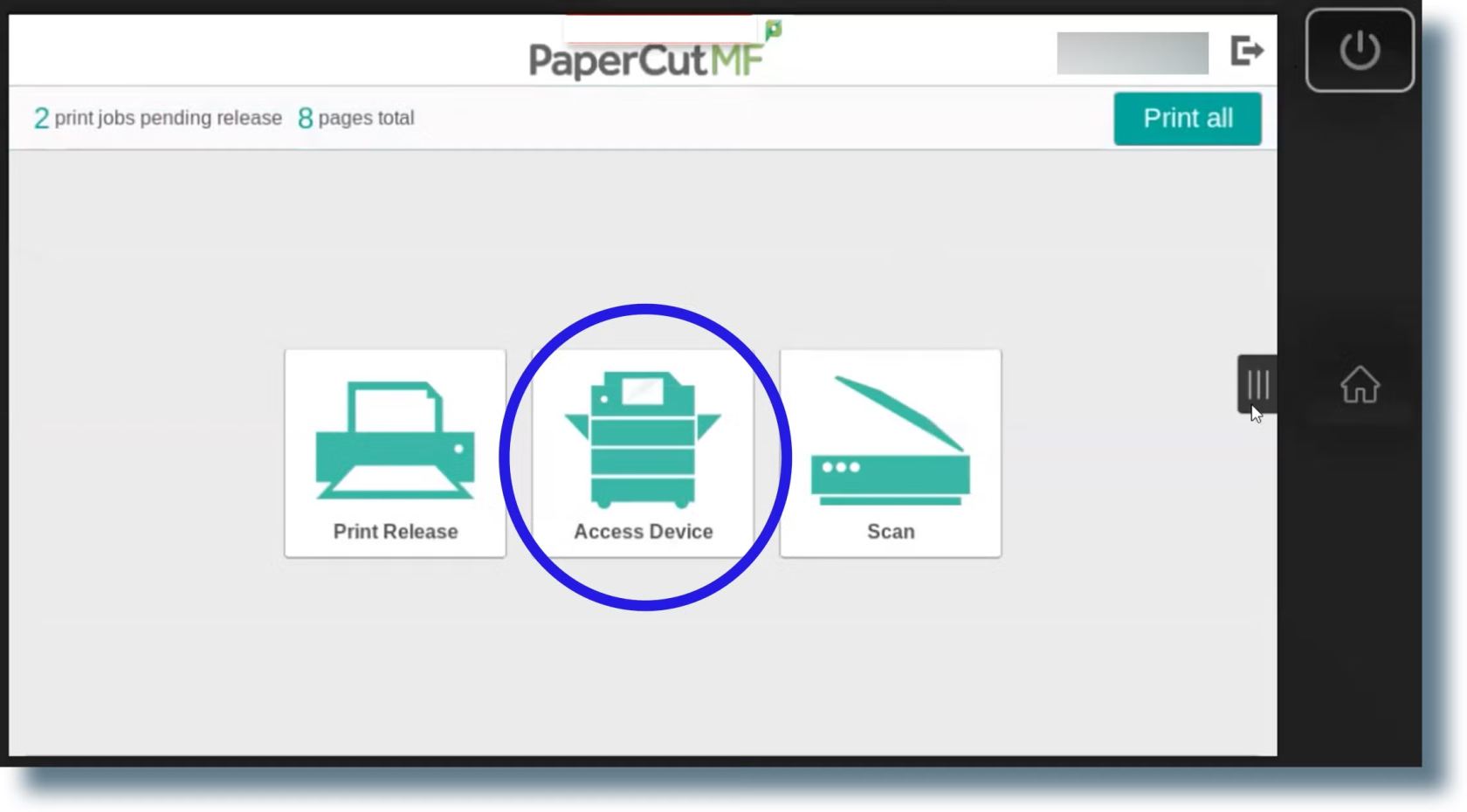
2\. Click on **"Access Device."**

[![IMG_0821.jpg](https://wiki.wearecornerstone.com/uploads/images/gallery/2025-11/scaled-1680-/iWbimg-0821.jpg)](https://wiki.wearecornerstone.com/uploads/images/gallery/2025-11/iWbimg-0821.jpg)

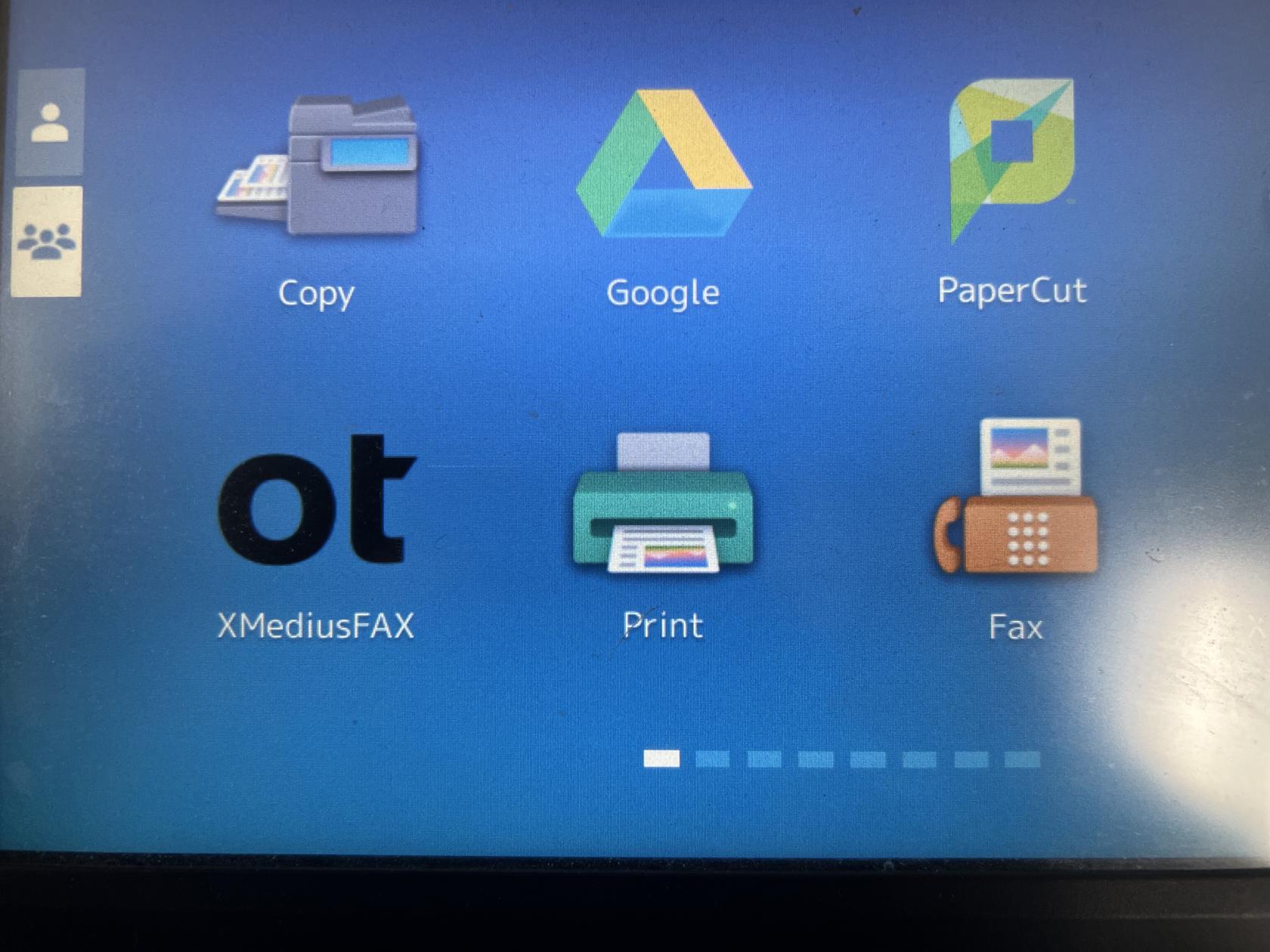
3\. Click the **"Home Icon"** on the printer itself.

[![IMG_0822.jpg](https://wiki.wearecornerstone.com/uploads/images/gallery/2025-11/scaled-1680-/haMimg-0822.jpg)](https://wiki.wearecornerstone.com/uploads/images/gallery/2025-11/haMimg-0822.jpg)

4\. Click on **"OT XMediusFax"**

[![IMG_0823.jpg](https://wiki.wearecornerstone.com/uploads/images/gallery/2025-11/scaled-1680-/IkKimg-0823.jpg)](https://wiki.wearecornerstone.com/uploads/images/gallery/2025-11/IkKimg-0823.jpg)
5\. Once you are in **OT XMediusFax** the user screen will look like the image below. Where it says **"Fax"** that is where you can put the fax number in of the recipient you would like to send a fax too. Once you input the fax number the "**Scan"** button in the top right corner of the picture will enable.

[![IMG_0824.jpg](https://wiki.wearecornerstone.com/uploads/images/gallery/2025-11/scaled-1680-/2bgimg-0824.jpg)](https://wiki.wearecornerstone.com/uploads/images/gallery/2025-11/2bgimg-0824.jpg)