# How to Print- Part 2 (Staff Login Printer)
## Printer Sign in
**There are 3 ways to login to the MFPs…**
##### **Click the arrows on the left side to display directions:**
CCA Badge
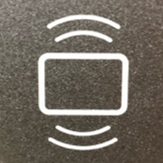
Tap your **ID card** on the printer at the icon (shown below) to left of the touch panel*.*
The first time you do this, you will be prompted to enter your **Username** (fist initial, last name. ex=jdoe) and **Password** ( related to your CCA Google Workspace Account )to associate the card with your cca-print account. After that, simply TAP and it will identify your account.
ID Number (5-Digit PIN #)
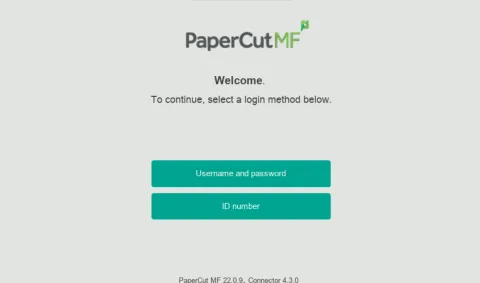
- Select **ID Number**
- Type **ID number.** ( *found on* **cca-print** ***account** page. see [How to Access Your PaperCut Account](https://wiki.wearecornerstone.com/books/papercut-user-follow-me-printing/page/how-to-access-your-papercut-account "🔒How to Access Your PaperCut Account") )*
[](https://wiki.wearecornerstone.com/uploads/images/gallery/2025-09/4Udimage.png)
Username Password
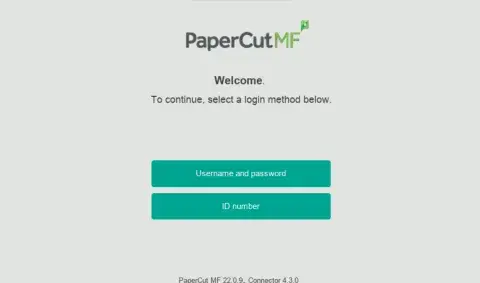
Enter **Username** *(first initial lastname e.g jdoe)* and **Password**
[](https://wiki.wearecornerstone.com/uploads/images/gallery/2025-09/papercut-login-1-buttons-png.webp)