# How to Print-Part 3 (Job Release)
##
**How to Release a Print Job**
Login to an printer *(see this [page](https://wiki.wearecornerstone.com/books/papercut-user-follow-me-printing/page/how-to-print-part-2-staff-login-printer "How to use the PaperCut Print system - Faculty and Staff"))*. Once logged in, you’ll see the number of print jobs/pages in your queue at the top of the screen. You can select the **Print all** button to print them all with no changes.
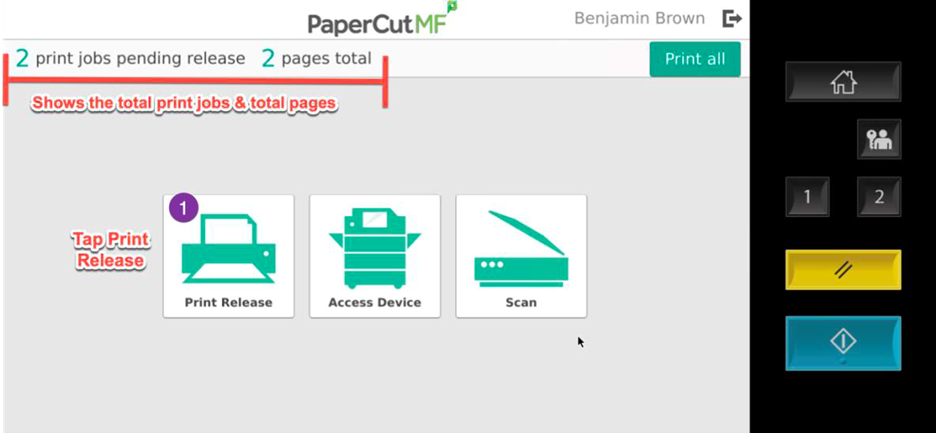
Or tap the **Print Release** button, to view the print job list. Here you can select the specific print job you want to print, and optionally change settings (# of copies, single/double-sided, etc) by tapping the ">" button to the right of the print job.
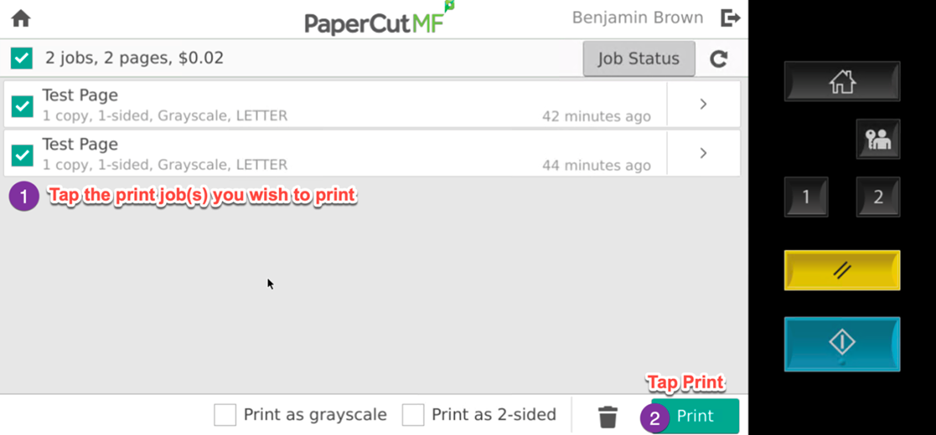
Select the desired job and tap **Print**.
You can also manually delete a print job if desired *(before the 8-hour time limit)*.
*\*\*\* The default settings for CCA print jobs are B/W and Double-sided. \*\*\**