# How to Scan Documents
**Scan to Email**
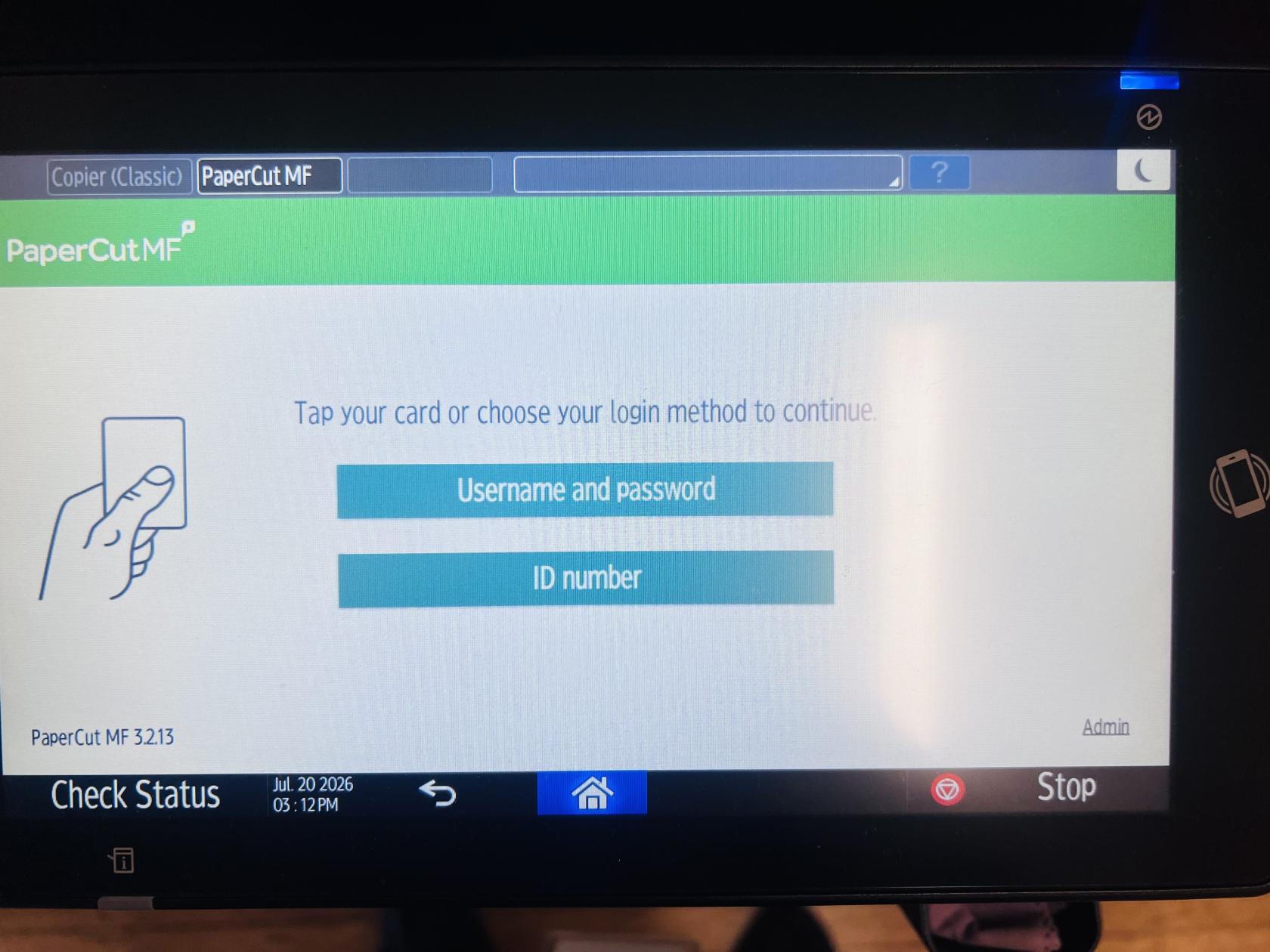
1\. First you must log in using one of the three ways to log in. Which is 1. ID Badge 2. Google Username(Only, nothing after the @ sign), and Password, Or your ID Number which is associated with your ID Badge. You can also log into "cca-print.wearecornerstone.com" to get you ID Number as well.
[](https://wiki.wearecornerstone.com/uploads/images/gallery/2026-07/img-1643.jpg)
2\. Note: You can only scan to your cornerstone email or google drive folder through the Papercut window on the copier machines, not the copier itself. If you want to scan to others you must scan it to yourself first then send it to the individual(s) you would like.
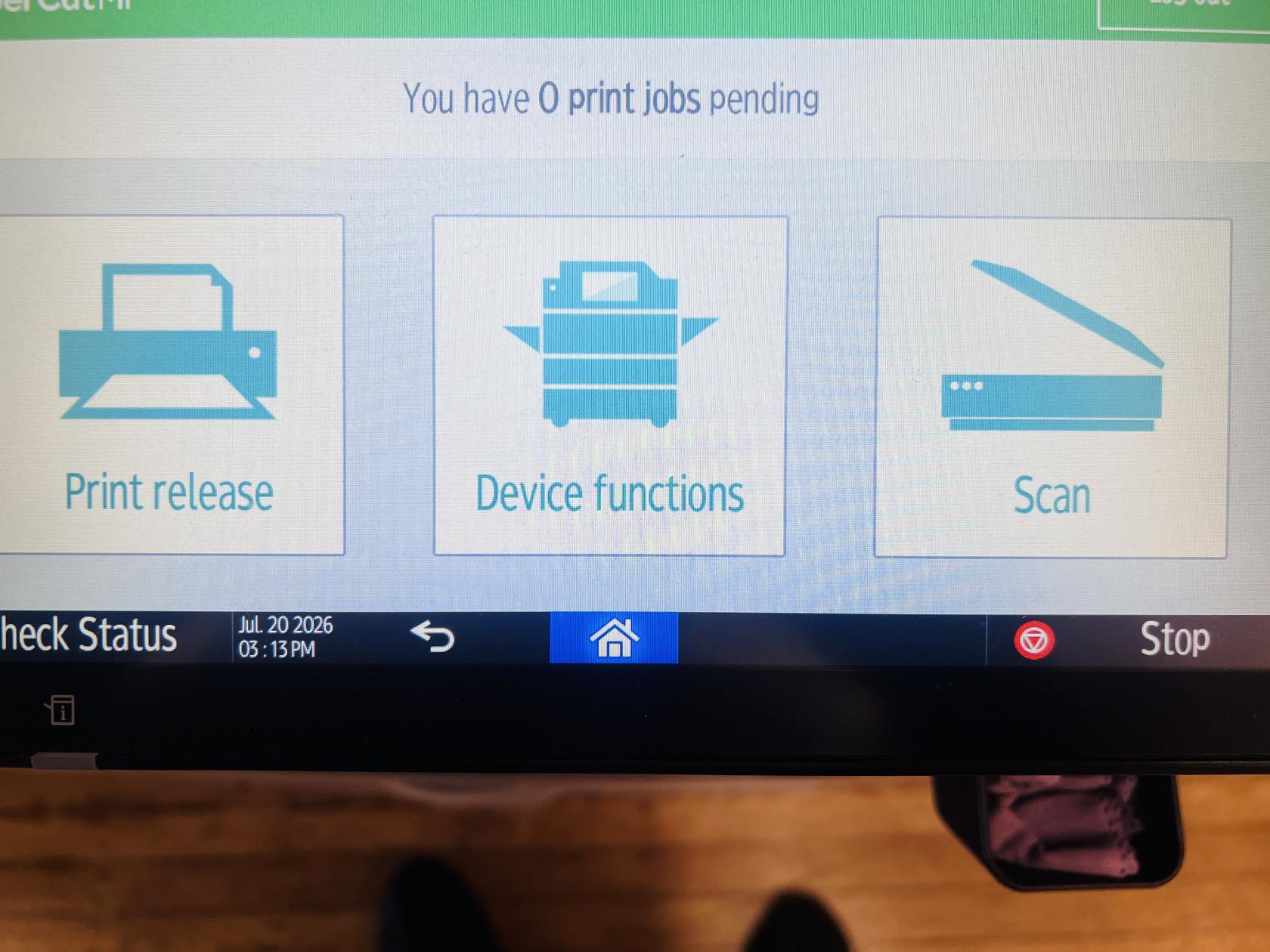
**Select "Scan" after signing in.**
[](https://wiki.wearecornerstone.com/uploads/images/gallery/2026-07/R5Simg-1645.jpg)
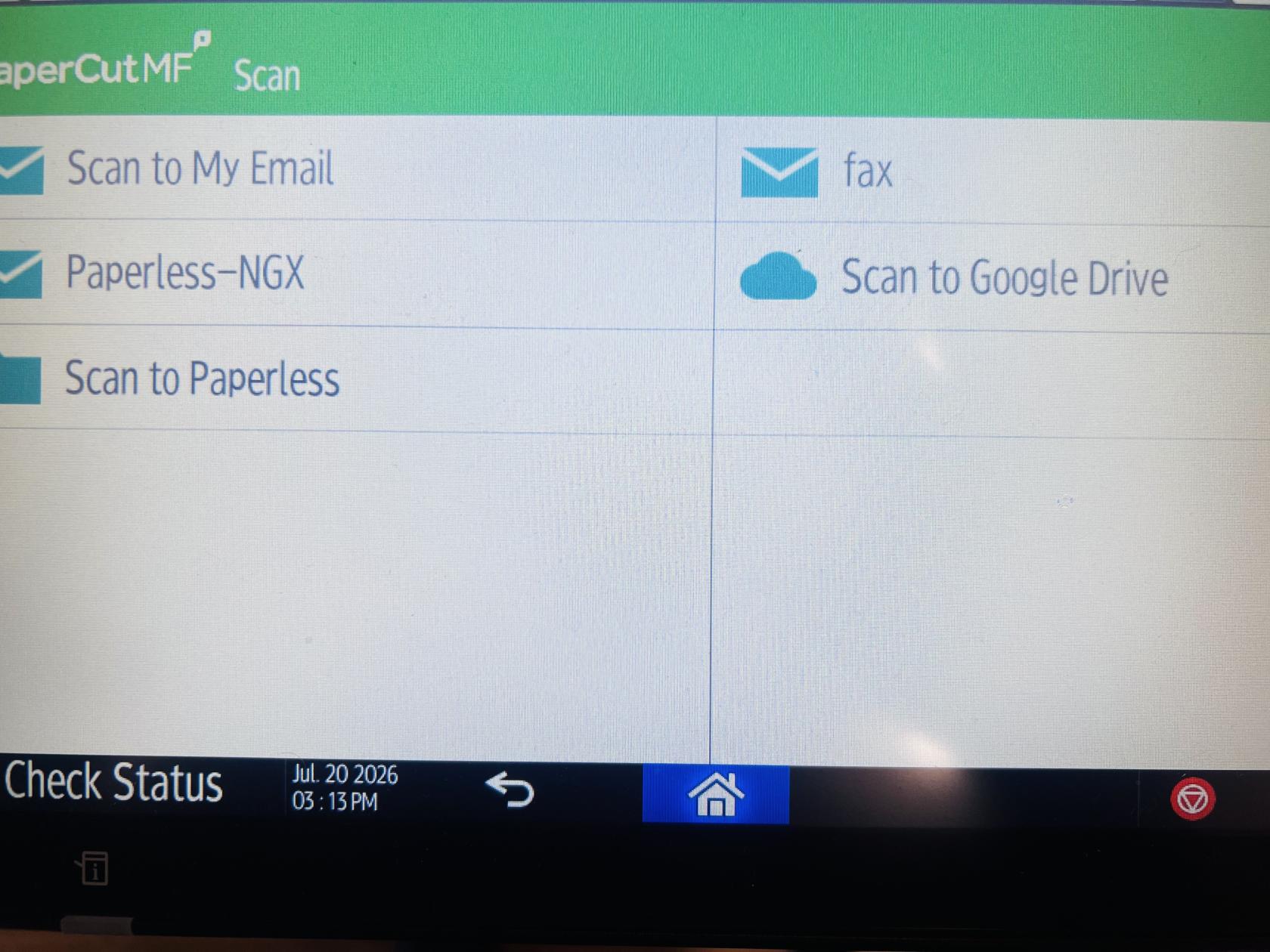
3\. Once you have selected the "Scan" button you can then select "Scan to My Email" or "Scan to Google Drive"
\* Every staff member does not have access to "Fax", "Paperless-NGX", or "Scan to Paperless" the screen below may show just " Scan to My Email" and "Scan to Google Drive"
[](https://wiki.wearecornerstone.com/uploads/images/gallery/2026-07/JqQimg-1646.jpg)