
Step by Step Tutorial On how to Approve Youtube Videos
Teachers and Staff can approve YouTube videos for students by signing into their school Google account on YouTube, navigating to the desired video, and clicking the "Approve" button, typically located below the video player, ensuring it is accessible to students in Restricted Mode. This process allows educators to curate content, making it viewable for students within their organization.
Step-by-Step Approval Process:
- Sign In: Open YouTube and sign in using your school-issued Google account (e.g., your school district email).
- Find the Video: Search for and click on the specific video you wish to approve.
- Locate the Button: Look for the blue bar directly below the video player, which should state if the video is not approved for your organization.
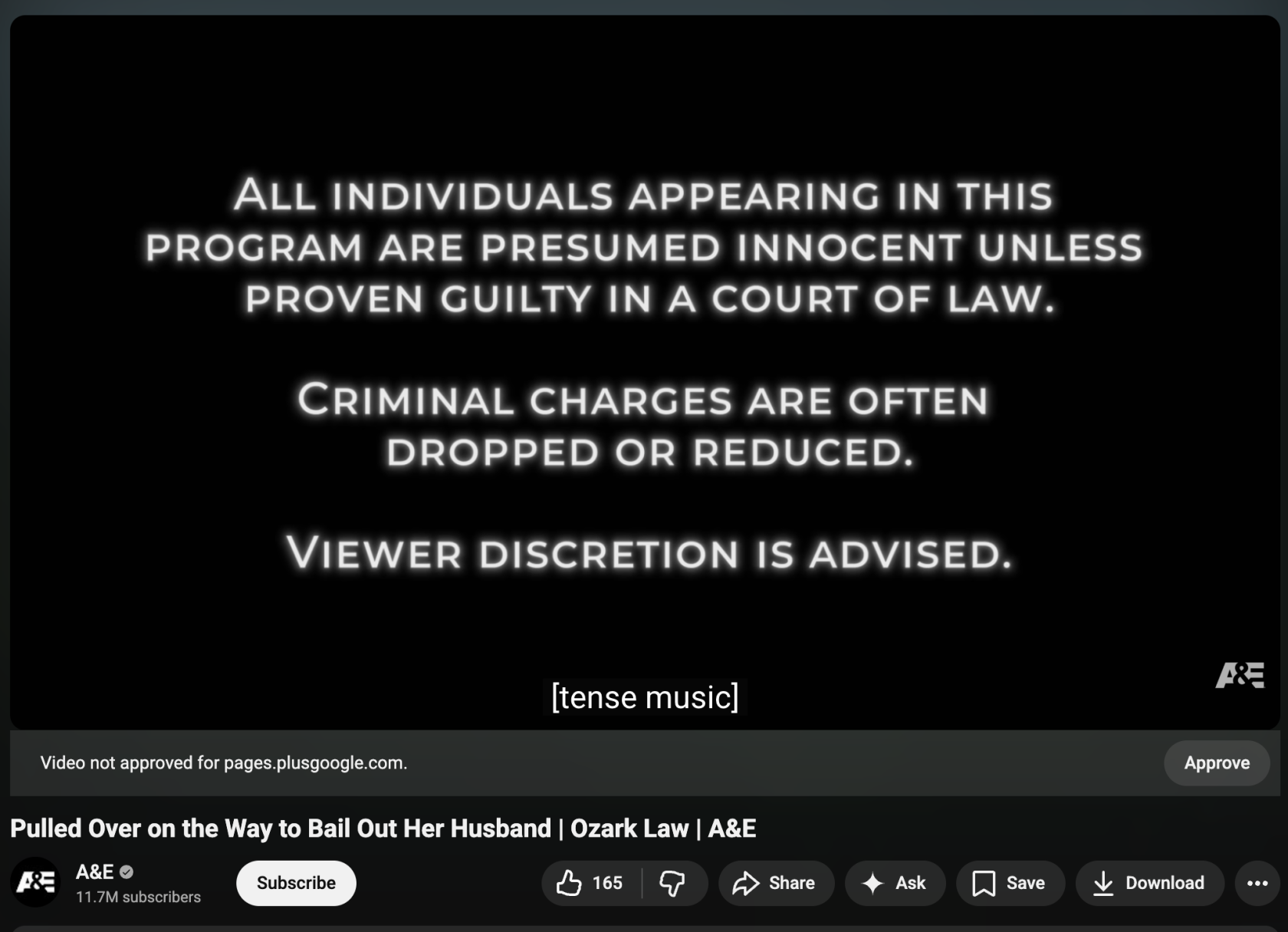
4. Approve the Content: Click the Approve button, which will then toggle to "Remove" once successfully authorized.
Note* Do not approve an entire youtube channel only video by video. Reason being the owner of that youtube channel might post something NSFW content and so it is best to approve video by video.