
How to Print-Part 1 ( Print from Computer)
We will be deploying PaperCut Print Deploy Client to all school computers. Once the software is installed, it will automatically open its main window (see below), prompting the user to sign-in.
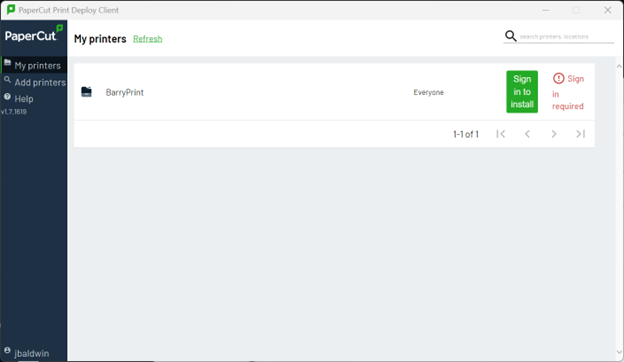
Once you sign-in, the new FOLLOW-ME print queue will be installed on the computer, and will appear in your printer list when you go to print. If you see the green Sign In button (as shown in the image above), do so to complete the installation. Use this print queue to send all print jobs to the new release print system.
*** All print jobs will be held in a secure queue until you release (print) them or delete them from the job list at an MFP. If not printed or manually deleted, they will be automatically deleted after 24 hours. ***