
How to Print- Part 2 (New Staff Login Printer)
Printer Sign in
There are 3 ways to login to the MFPs…
Click the arrows on the left side to display directions:
CCA Badge
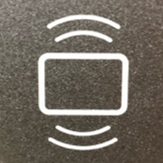
Tap your ID card on the printer at the icon (shown below) to left of the touch panel.
The first time you do this, you will be prompted to enter your Username (fist initial, last name. ex=jdoe) and Password ( related to your CCA Google Workspace Account )to associate the card with your cca-print account. After that, simply TAP and it will identify your account.
ID Number (5-Digit PIN #)
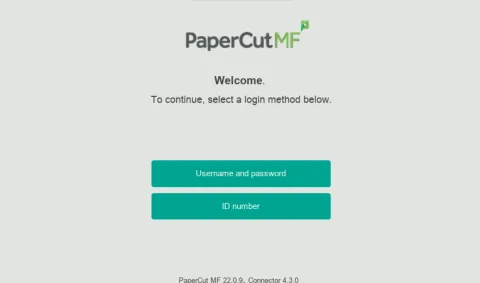
- Select ID Number
- Type ID number. ( found on cca-print account page. see How to Access Your PaperCut Account )
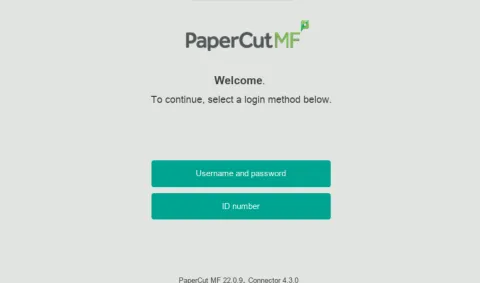
Username Password
Enter Username (first initial lastname e.g jdoe) and Password
Once logged in, you have 3 options:
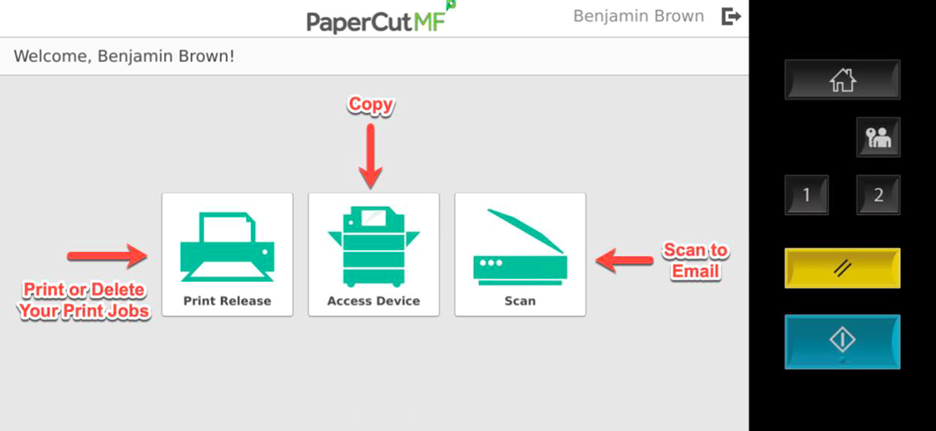
- Copy
- Scan - to Email, or Google Drive
The system will automatically log you off after 45 seconds of no activity. To manually log off, you can click the Log Off / Lock Screen or Clear Settings buttons (see image above), or click the log out icon next to your name in the top section of the touch screen