
How to Print- Part 2 (New Staff Login Printer)
Printer Sign in
There are 3 ways to login to the MFPs…
Click the arrows on the left side to display directions:
CCA Badge
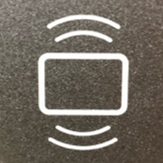
Tap your ID card on the MFP ( multifunction printer ) at the icon (shown below) to left of the touch panel.
The first time you do this, you will be prompted to enter your Username (fist initial, last name. ex=jdoe) and Password ( related to your CCA Google Workspace Account )to associate the card with your cca-print account. After that, simply TAP and it will identify your account.
ID Number (5-Digit PIN #)
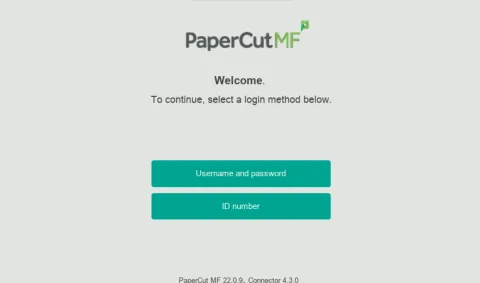
- Select ID Number
- Type ID number. ( found on cca-print account page. see How to Access Your PaperCut Account )
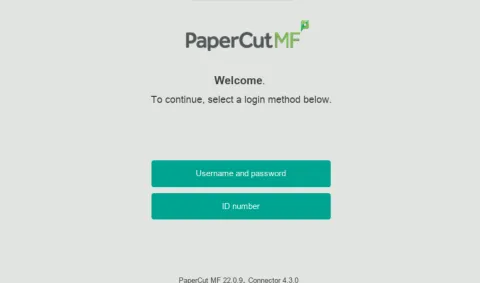
Username Password
Enter Username (firstinitialfirst initial lastname e.g jdoe) and Password
Once logged in, you have 3 options:
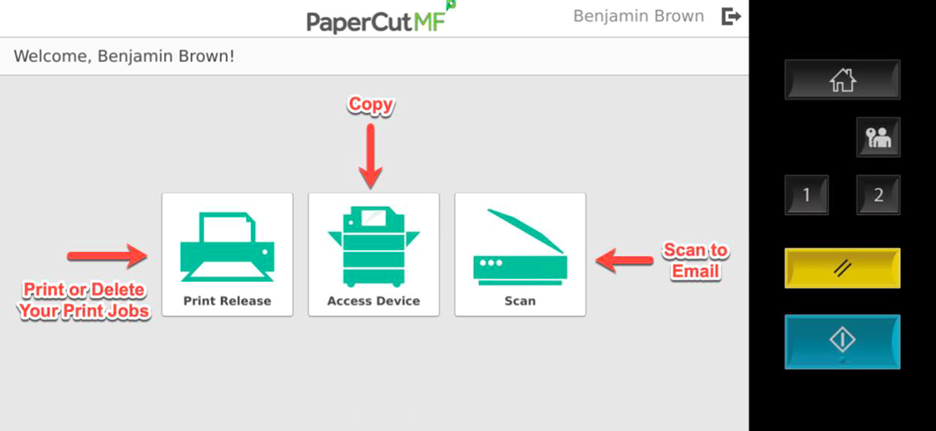
- Copy
- Scan - to Email, or Google Drive
The system will automatically log you off after 45 seconds of no activity. To manually log off, you can click the Log Off / Lock Screen or Clear Settings buttons (see image above), or click the log out icon next to your name in the top section of the touch screen