
How to Print- Part 2 (New Staff Login Printer)
Printer Sign in
There are 3 ways to login to the MFPs…
CCA Badge
Tap your ID card on the MFP at the icon (shown below) to left of the touch panel.
The first time you do this, you will be prompted to enter your Username (fist initial, last name. ex=jdoe) and Password to associate the card with your account.
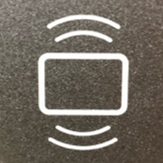
After that, simply TAP and it will identify your account.
ID Number (5-Digit PIN #)
Type ID number. (
found
on cca-print account page. see How to Access Your PaperCut Account )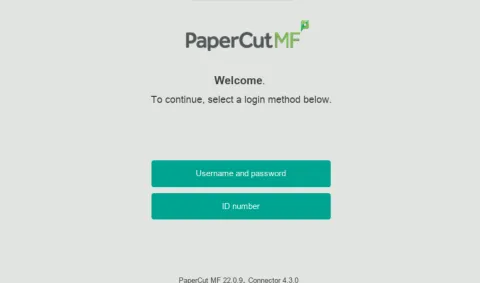
Username Password
Enter Username (firstinitial lastname e.g jdoe) and Password
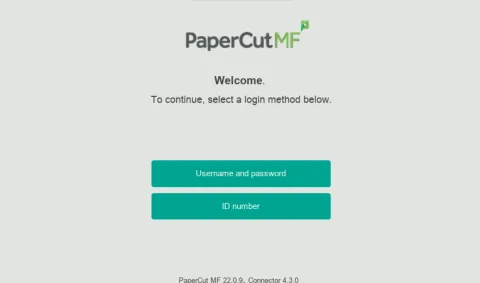
Once logged in, you have 3 options:
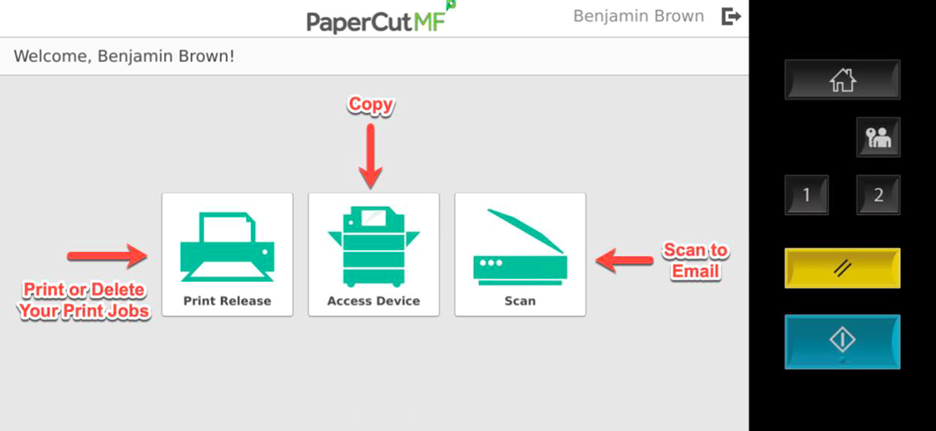
- Copy
- Scan - to Email, Fax, or Google Drive
The system will automatically log you off after 45 seconds of no activity. To manually log off, you can click the Log Off / Lock Screen or Clear Settings buttons (see image above), or click the log out icon next to your name in the top section of the touch screen