
How to Print-Part 3 (Job Release)
How to Release a Print Job
Login to an an printer printer (see this page). Once logged in, you’ll see the number of print jobs/pages in your queue at the top of the screen. You can select the the Print all button to print them all with no changes.
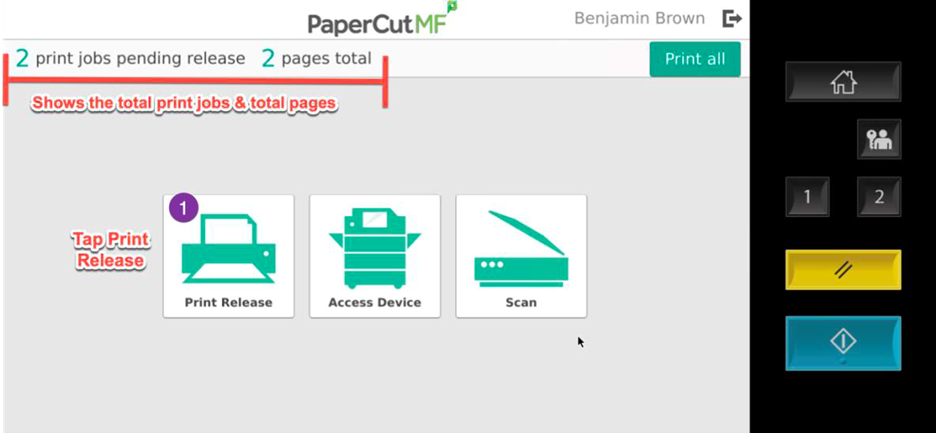
Or tap the the Print Release button, to view the print job list. Here you can select the specific print job you want to print, and optionally change settings (# of copies, single/double-sided, etc) by tapping the ">" button to the right of the print job.
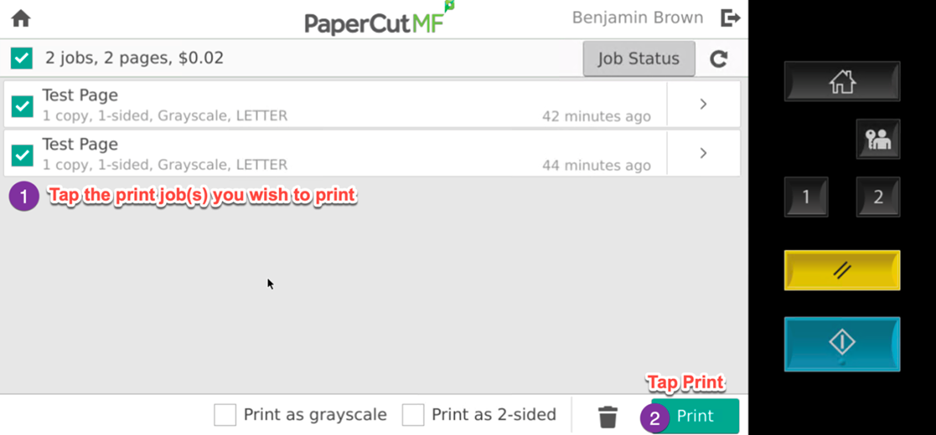
Select the desired job and tap tap Print.
You can also manually delete a print job if desired desired (before the 8-hour time limit).
*** The default settings for CCA print jobs are B/W and Double-sided. ***