
Steps to Release Print Jobs.
This is a follow-up regarding the copiers. If you are experiencing printing issues, please try the steps below:
Important Note: Before releasing your print jobs, please double-check that they are not duplicates to avoid printing the same job multiple times.
-
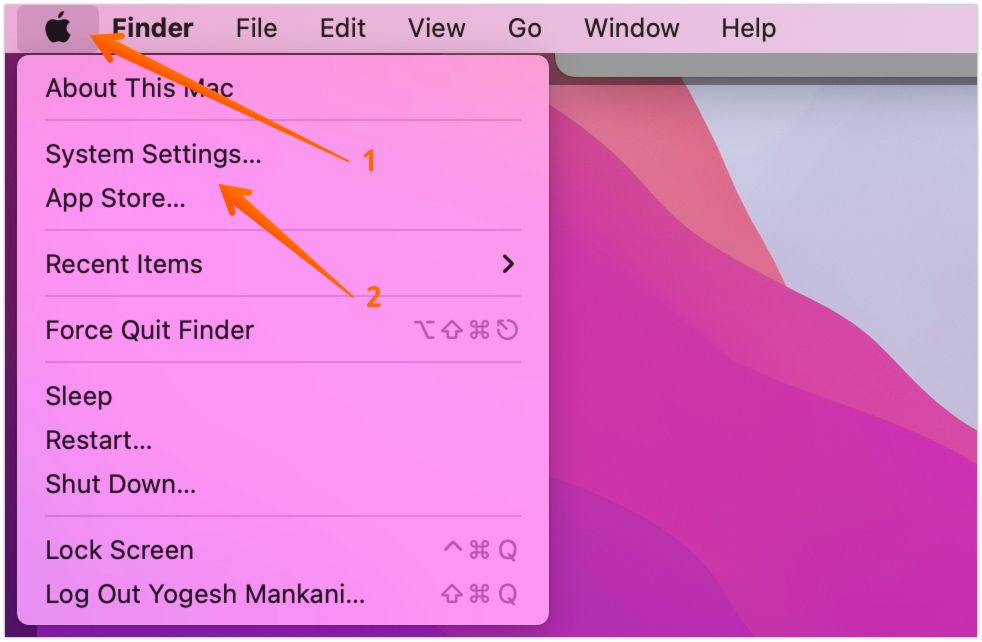
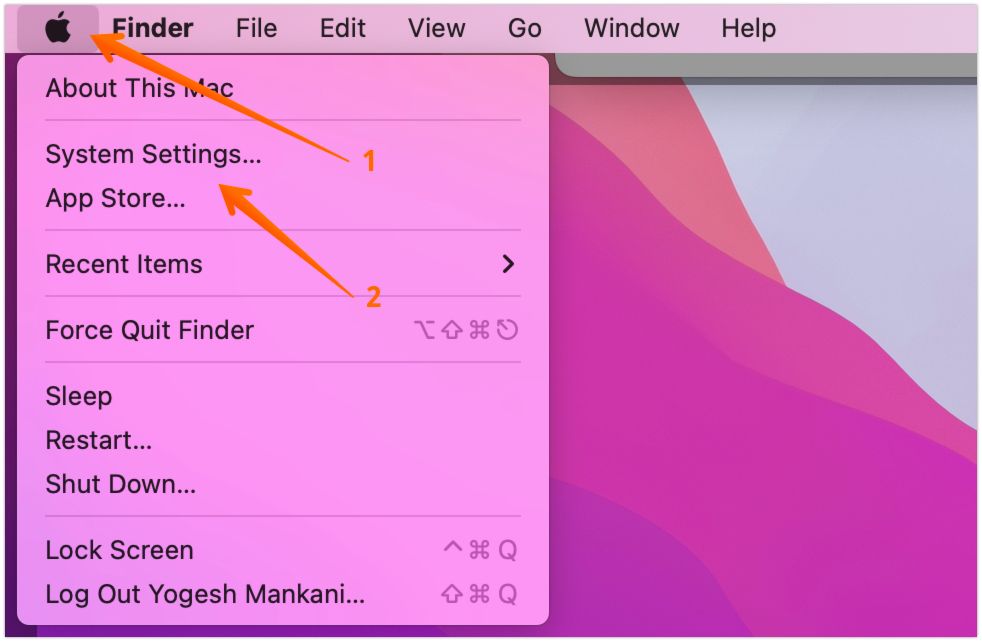
Open System Settings (you can also search for it; the icon looks like a gray gear
 ).
).
-
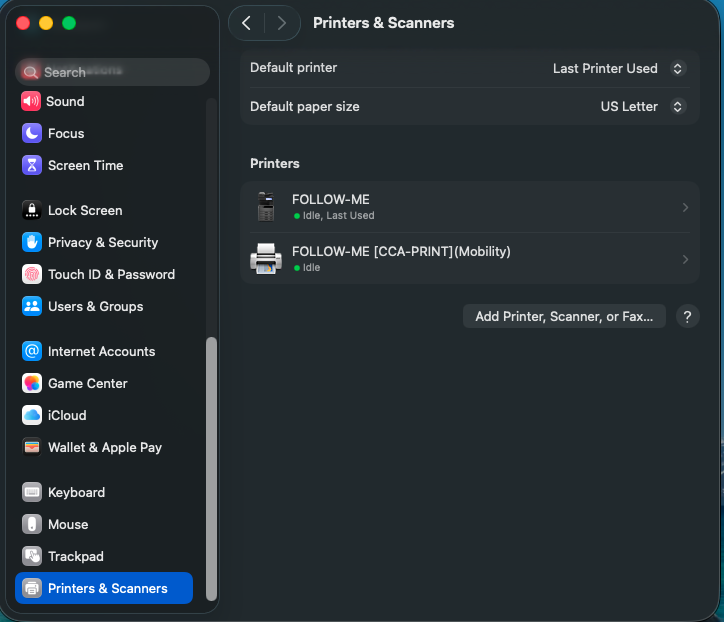
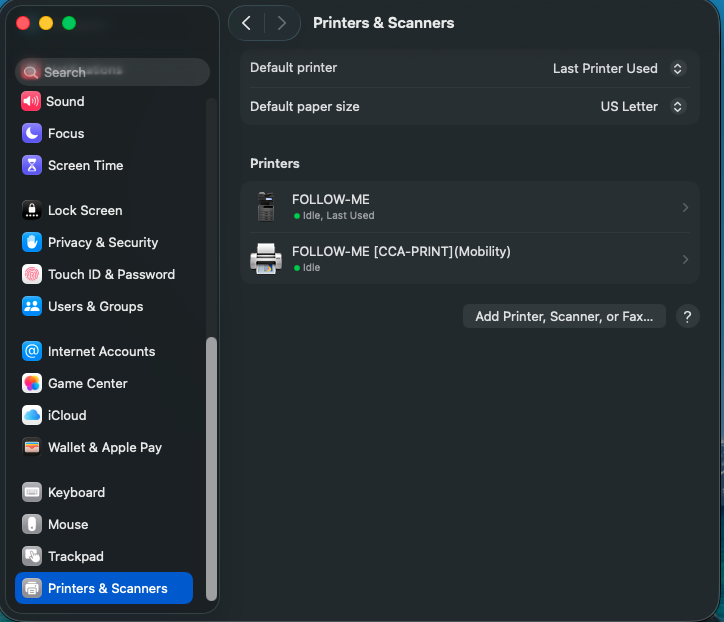
In System Settings, scroll down and select Printers & Scanners.
-
Select the Follow Me printer.
-
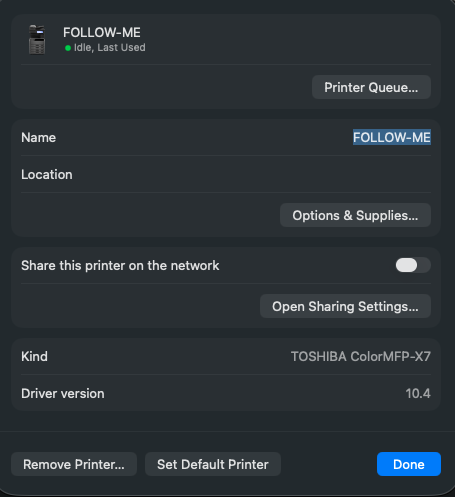
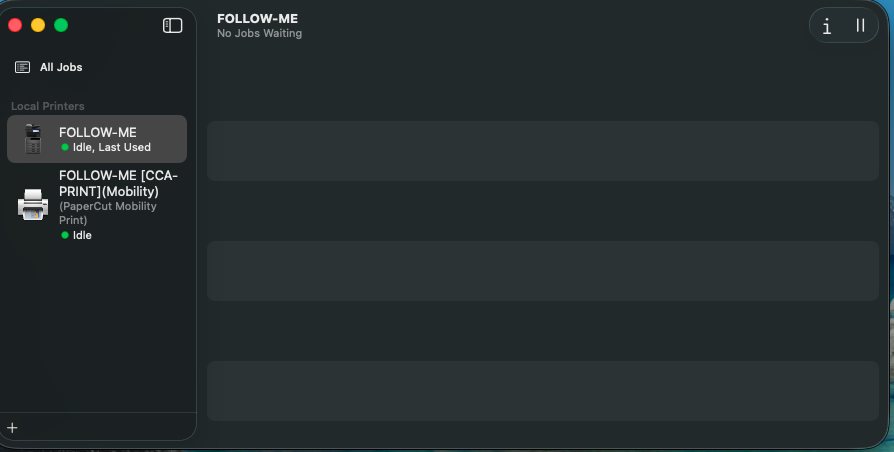
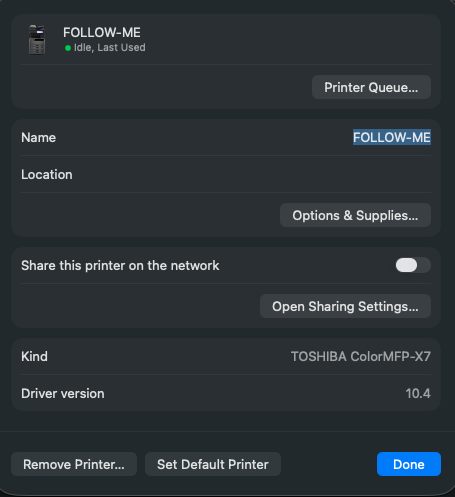
Click Printer Queue.
-
-
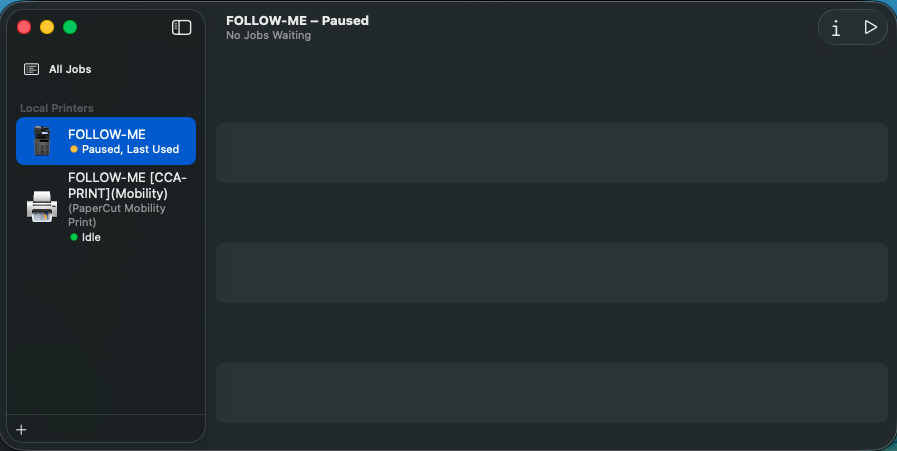
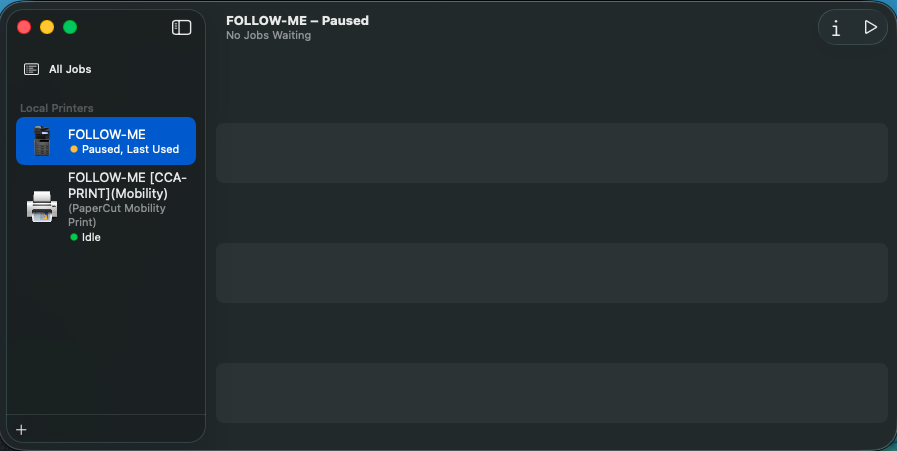
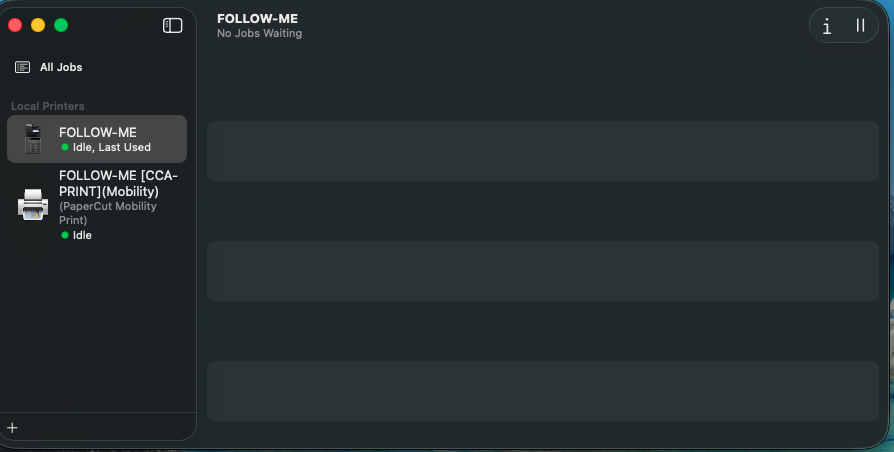
In the Printer Queue window:
-
Click the Play button in the top-right corner (above your print jobs).
-
The Play button will switch to a Pause button once it’s active.
-
Then, release your print jobs by clicking the Play button next to each print job that you want released. If you do not want the print jobs just click the "x" next to the print job.
-
Important Note: Before releasing your print jobs, please double-check that they are not duplicates to avoid printing the same job multiple times.
-
-

Once your jobs go through, you will be able to print normally.
Note* If it asks you for administrator credentials to unpause the printer. Please submit a ticket to helpdesk@cornerstonephiladelphia.com