
How to Log In to Your CCA Laptop
1. Enter Your Username
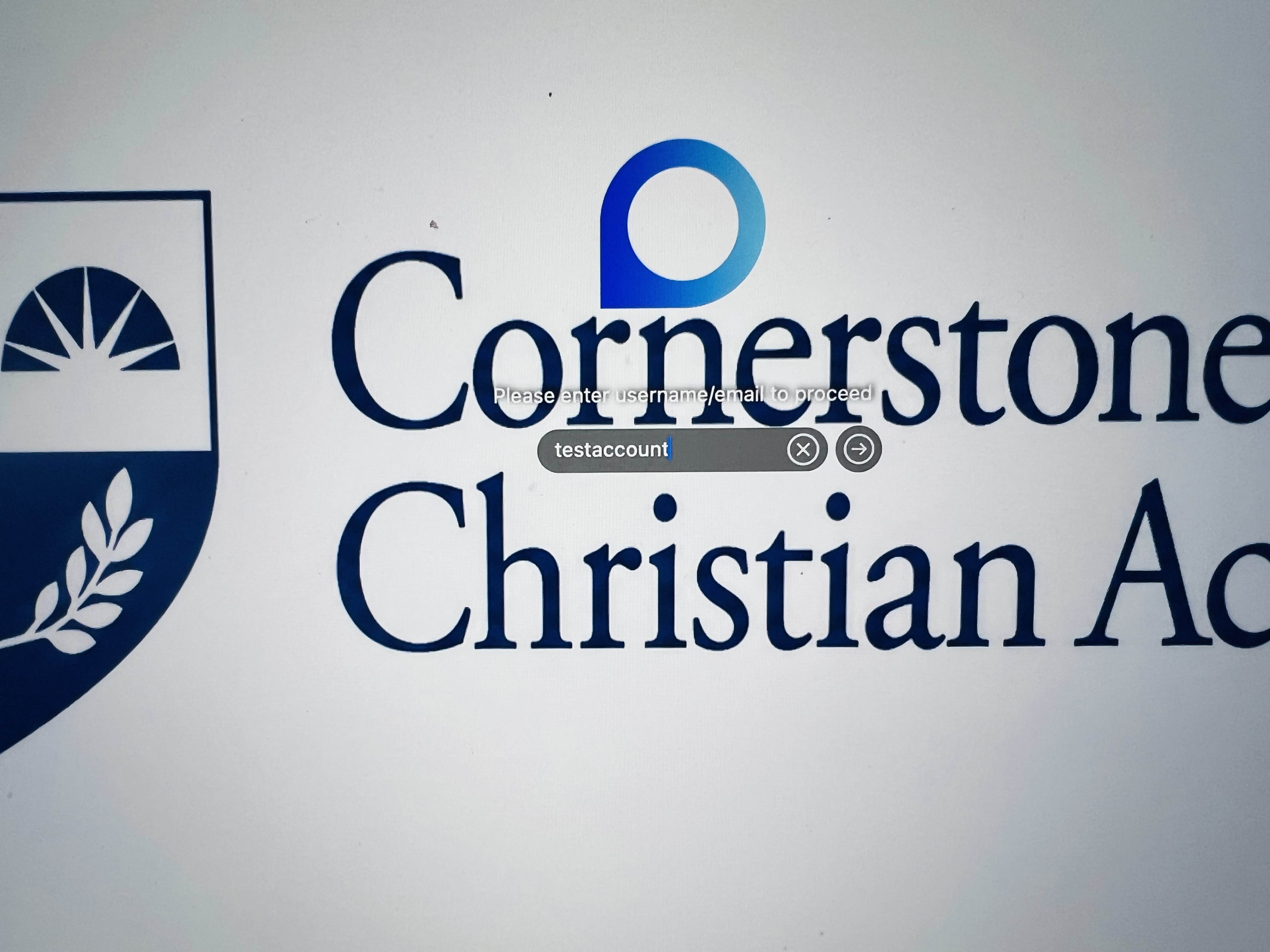
Once you turn on your laptop, you will see the Cornerstone Christian Academy logo in the background and a sign-in bar that says “Username/Email.”
Staff and student accounts are associated with their CCA username.
- Staff: Your username is your first initial + last name.
Example:JDoe - Students: Your username is your first initial + last name + two-digit graduation year.
Example:Jdoe26
Enter only your username in the sign-in bar. Then press Enter.
2. Google Login
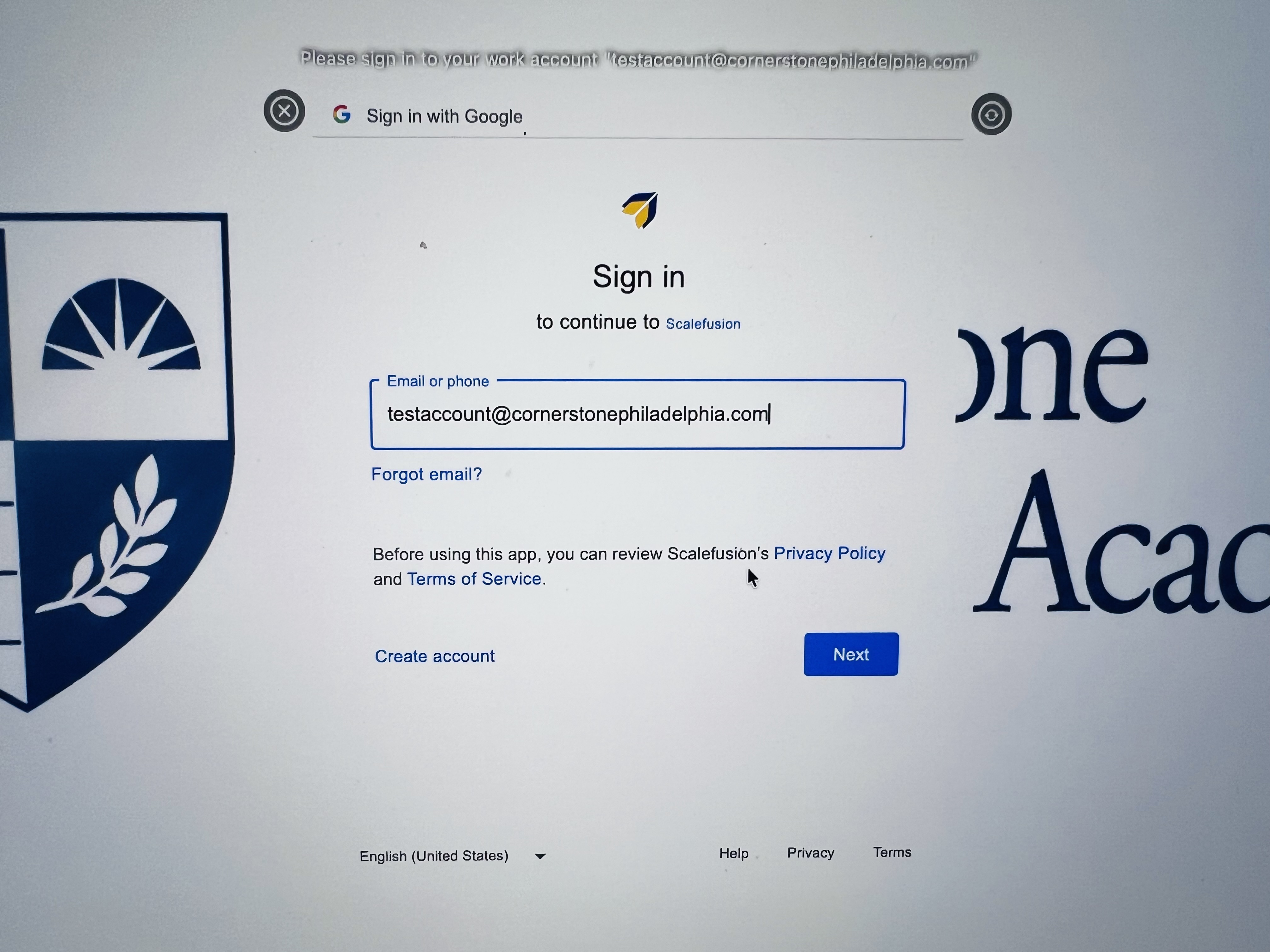
After you press Enter, you will be taken to the Google login screen.
Your CCA Google email address will automatically populate.
Click Next.
3. Enter Your Google Password
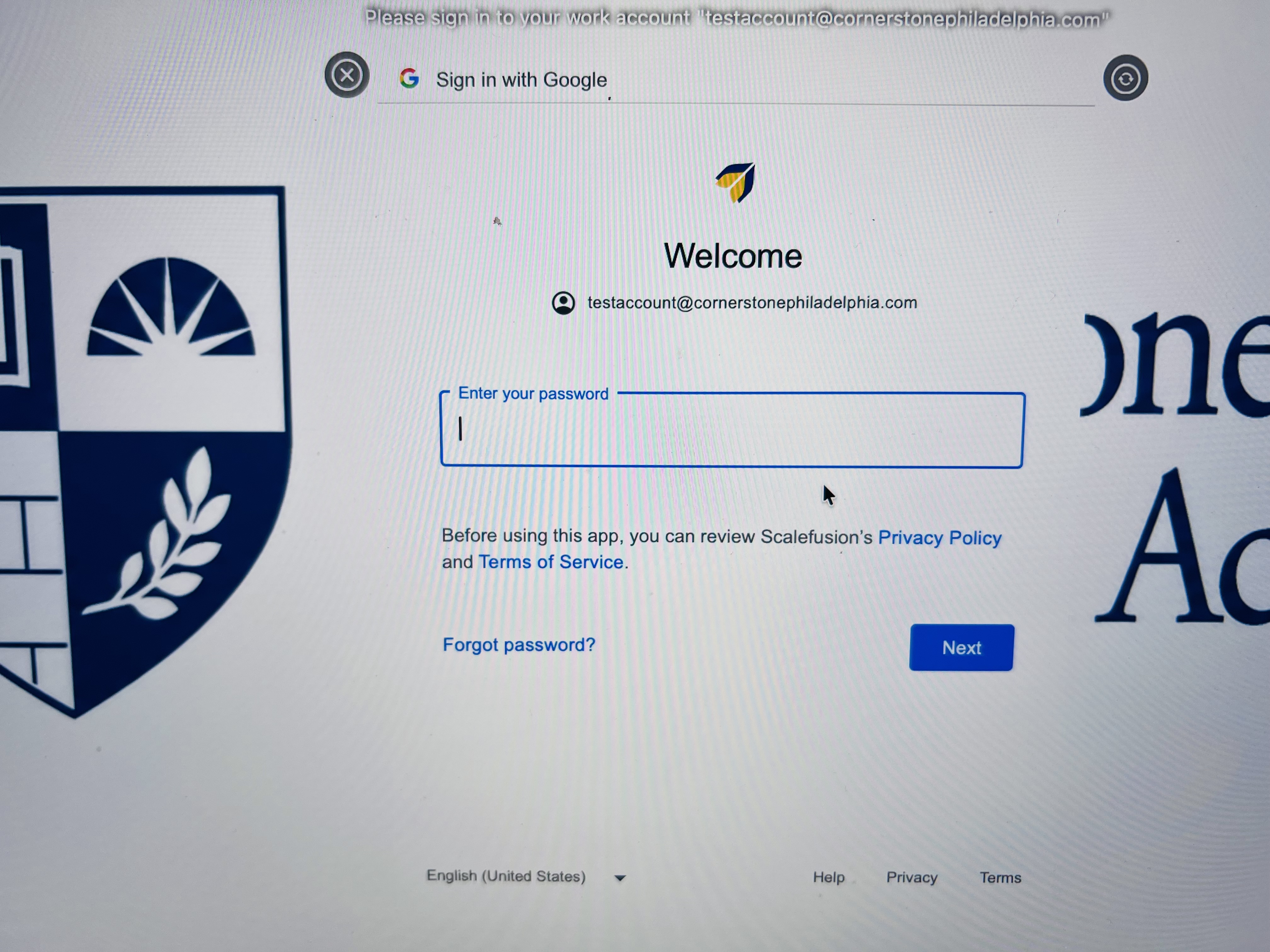
On the next screen, enter your CCA Google password.
Important: There is no longer a separate password for logging into your laptop. Your laptop login is now connected to your CCA Google account.
4. Allow Scalefusion
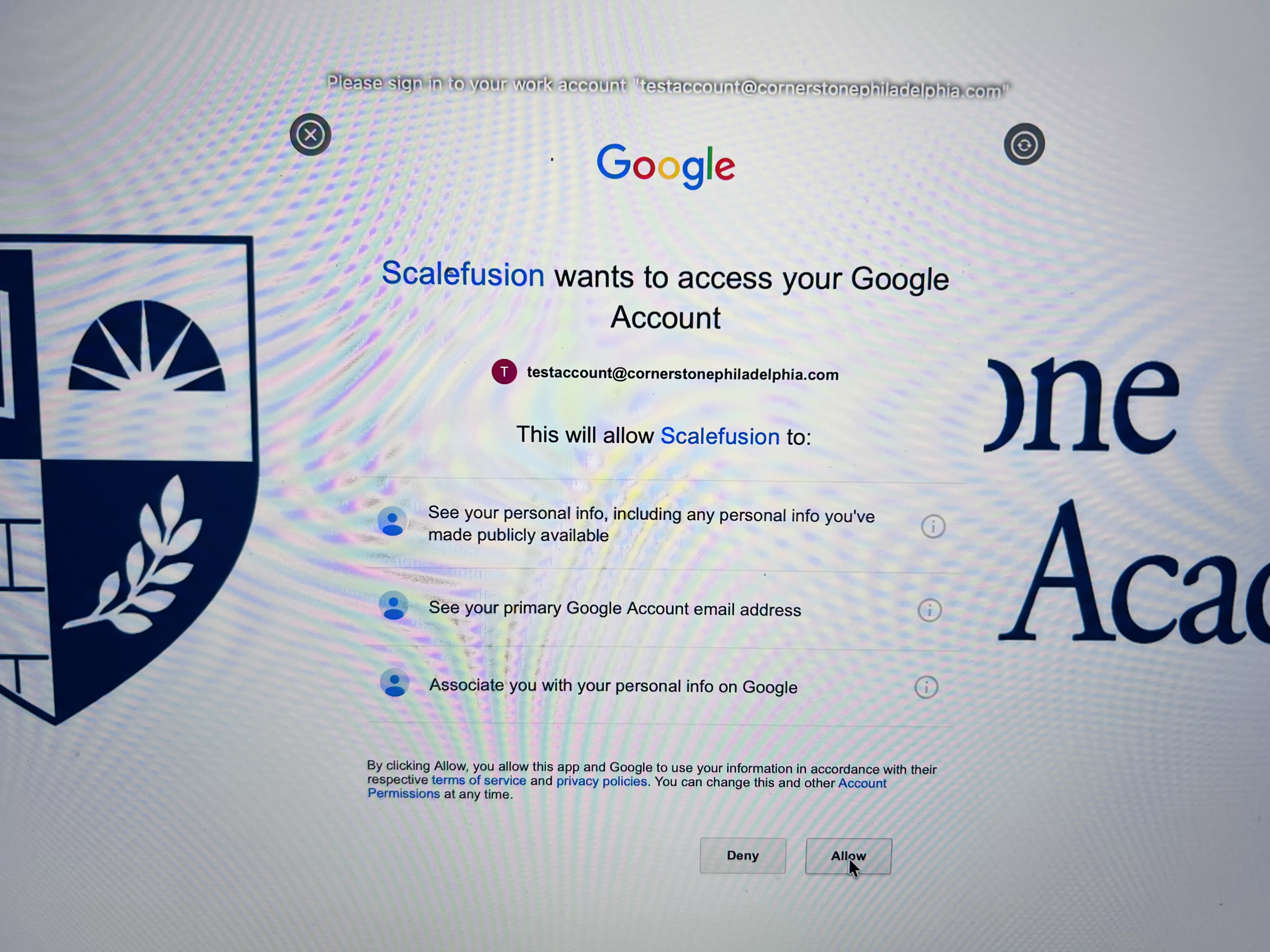
After entering your Google password, you will see an acknowledgment screen regarding Scalefusion and its management of your device.
Click Allow.
Your screen may then turn black for a short period of time. Do not be alarmed. Your laptop is setting up your user profile.
Follow the prompts provided by Apple and Allow when prompted.
5. You're All Set!
Once the setup is complete, you will be fully logged in to your laptop.
You will not need to complete these setup prompts again unless you log out of your profile or your device requires you to sign in again.
Everything else on your laptop will work the same as before.
You may notice two new icons at the top of your screen:
- Veltar — Shield icon
- Scalefusion — Arrowhead icon
These icons are part of CCA's device security and management system.
Need Help?
If you have trouble logging in or are unsure of your username or password, please contact the Helpdesk@cornerstonephiladelphia.com for assistance.
No comments to display
No comments to display