
How to Make Copies
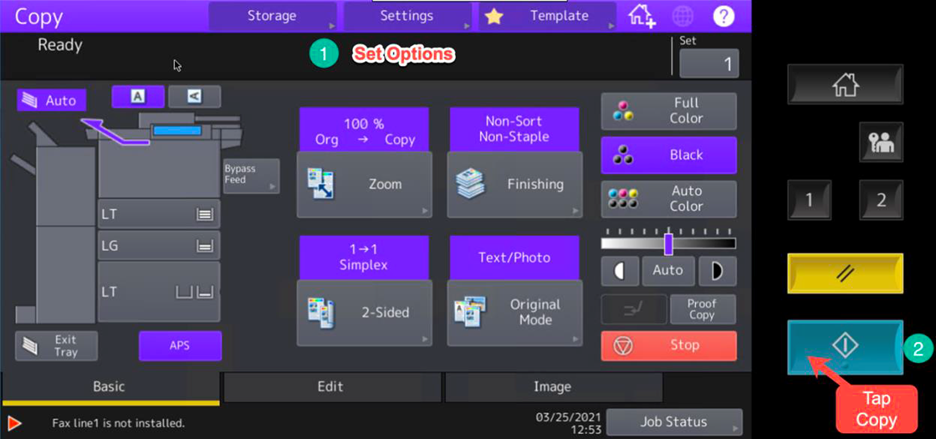
Login to an printer (see this page) and tap the the Copy button. The screen will change to the MFP's (Multi Function Printer) copy interface, showing choices for 1 or 2-sided, B/W or Color, # of copies, etc. Tap the Copy physical button to start the copy, or you can tap the 1 button to go back back (see example image below).
Scan to to Email/Other email
When you select select Scan to Email, your CCA email is automatically used as the source for the scanned email. You can change the the Filename for the scanned file or change DPI and other settings settings (these are all optional). Then load the paper to scan and tap tap Start. When prompted you can load additional paper or simply tap tap Finish to completed the scan and send the email.
The scanned page(s) will come into your CCA email inbox, with your CCA email as the sender.
If you don’t see the email in your inbox, check your Junk folder.
Scan to Other Email works the same way, except you must fill in the the Email field for the email you want to send the scans to.