Please save any work before clicking Relaunch, as Chrome will close and reopen.
If you already see “Relaunch to update” in the upper-right corner of Chrome, you can simply click that button instead of going through the steps below. Only if you do not see “Relaunch to update” you can follow the steps below.
How to Update Google Chrome
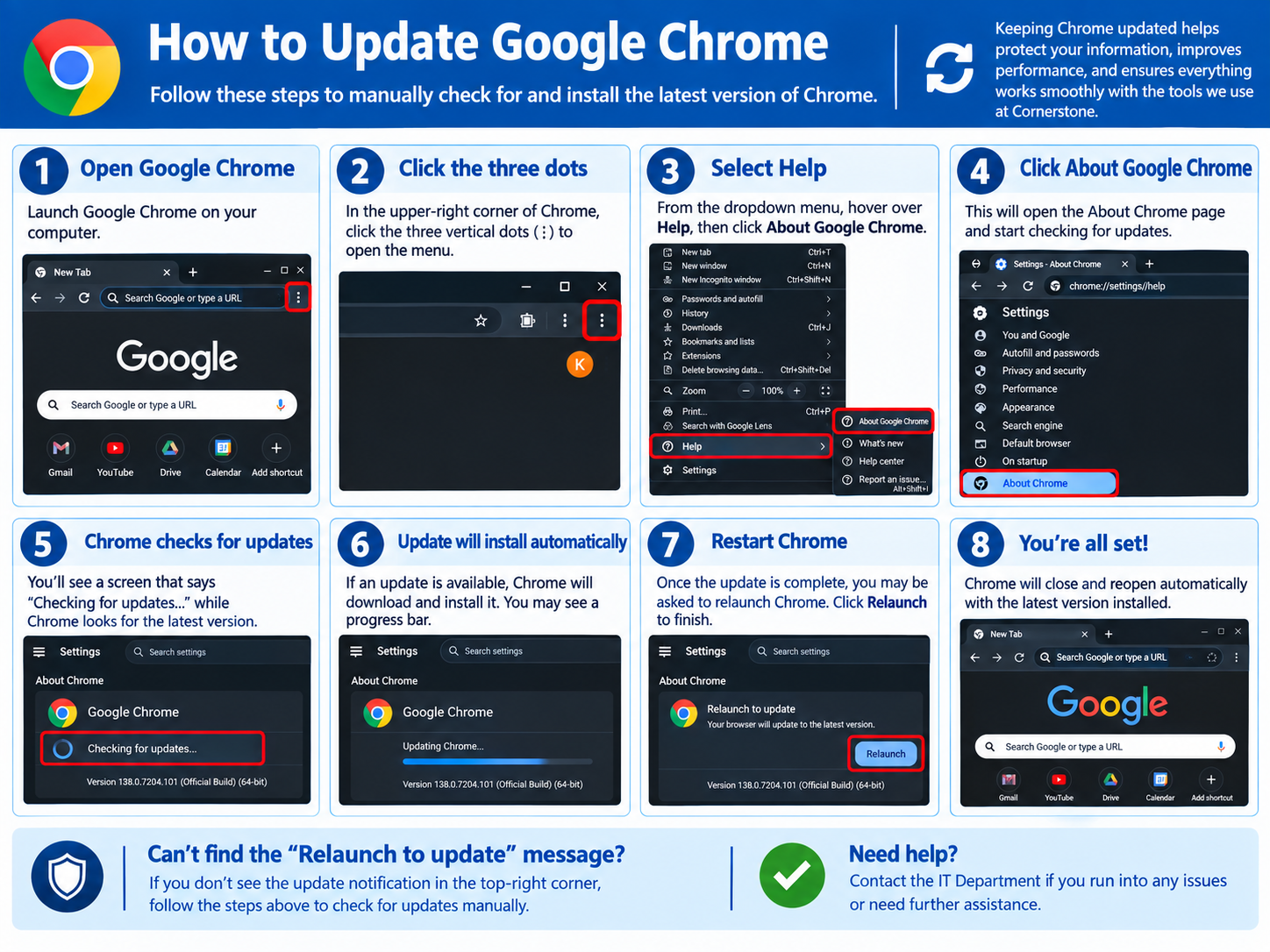
Please follow these steps to make sure you are running the latest version of Google Chrome:
Open Google Chrome on your computer.
Look at the upper-right corner of the Chrome window.
Click the three vertical dots (⋮) to open the Chrome menu.
Hover your mouse over Help.
Click About Google Chrome.
Chrome will automatically check to see if there is an available update.
If an update is available, Chrome will automatically download and install it.
Once the update is ready, you may see a “Relaunch” button. Click Relaunch to finish installing the update.
Chrome will close and reopen. Your Chrome browser is now up to date.
If you experience any issues updating Chrome, please contact the IT Department for assistance

No comments to display
No comments to display